
How to Set Up a TikTok Welcome Message with Reflys?
The Welcome Message is the first thing a user sees in their chat while contacting you. Think of it like a digital handshake; it helps you make a good first impression, guide users in the right direction, and build trust from the very start.
Whether you’re showing your services, offering quick options, or simply greeting visitors with a warm hello, your Welcome Message sets the tone for the entire conversation.
How to Set Up the TikTok Welcome Message in Reflys?
Before starting, make sure that your TikTok channel is connected with Reflys. Follow these simple steps to get your Welcome Message up and running:
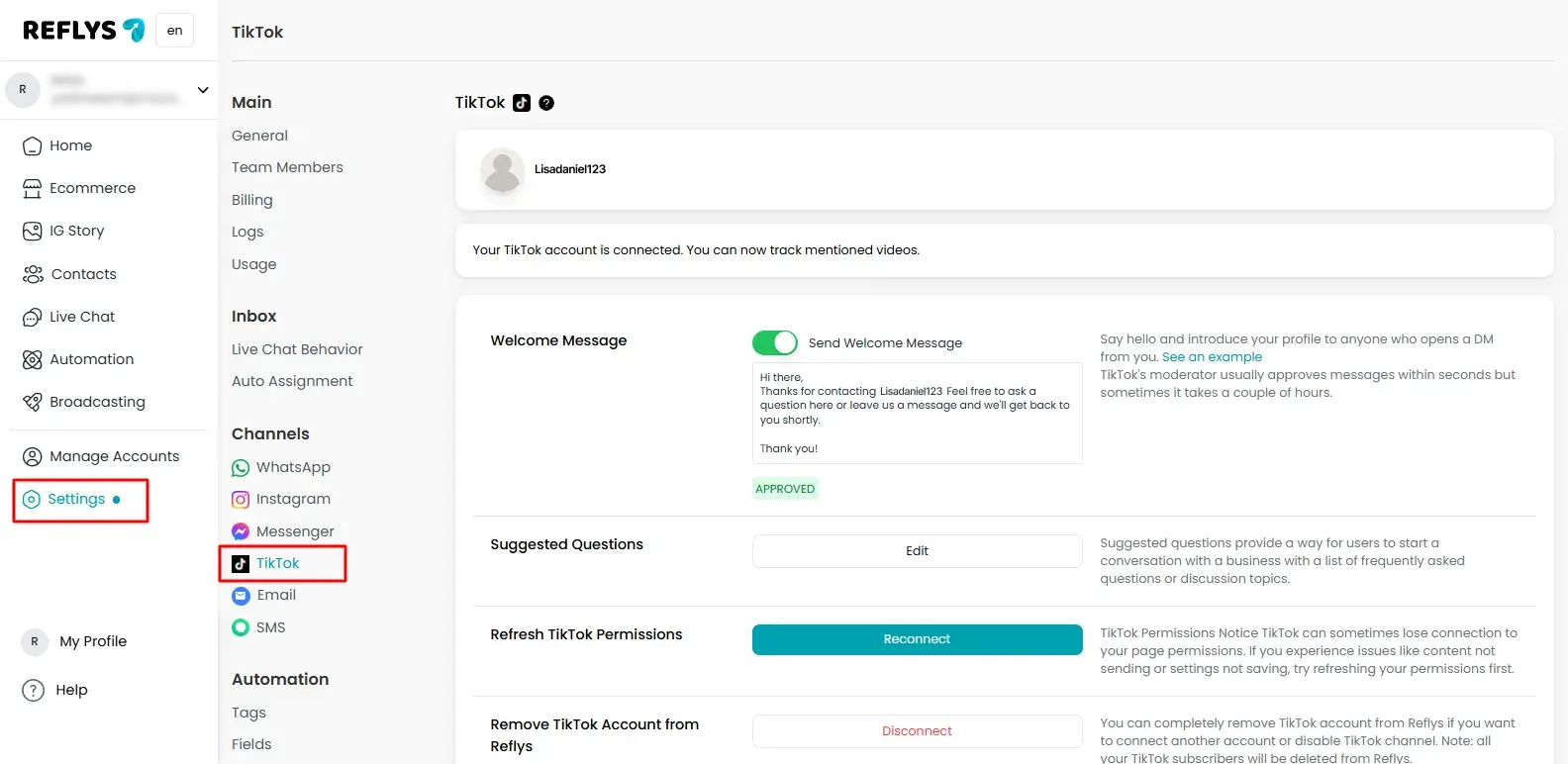
1. Go to Settings in Reflys Dashboard
From your Reflys dashboard, click:
Settings> TikTok
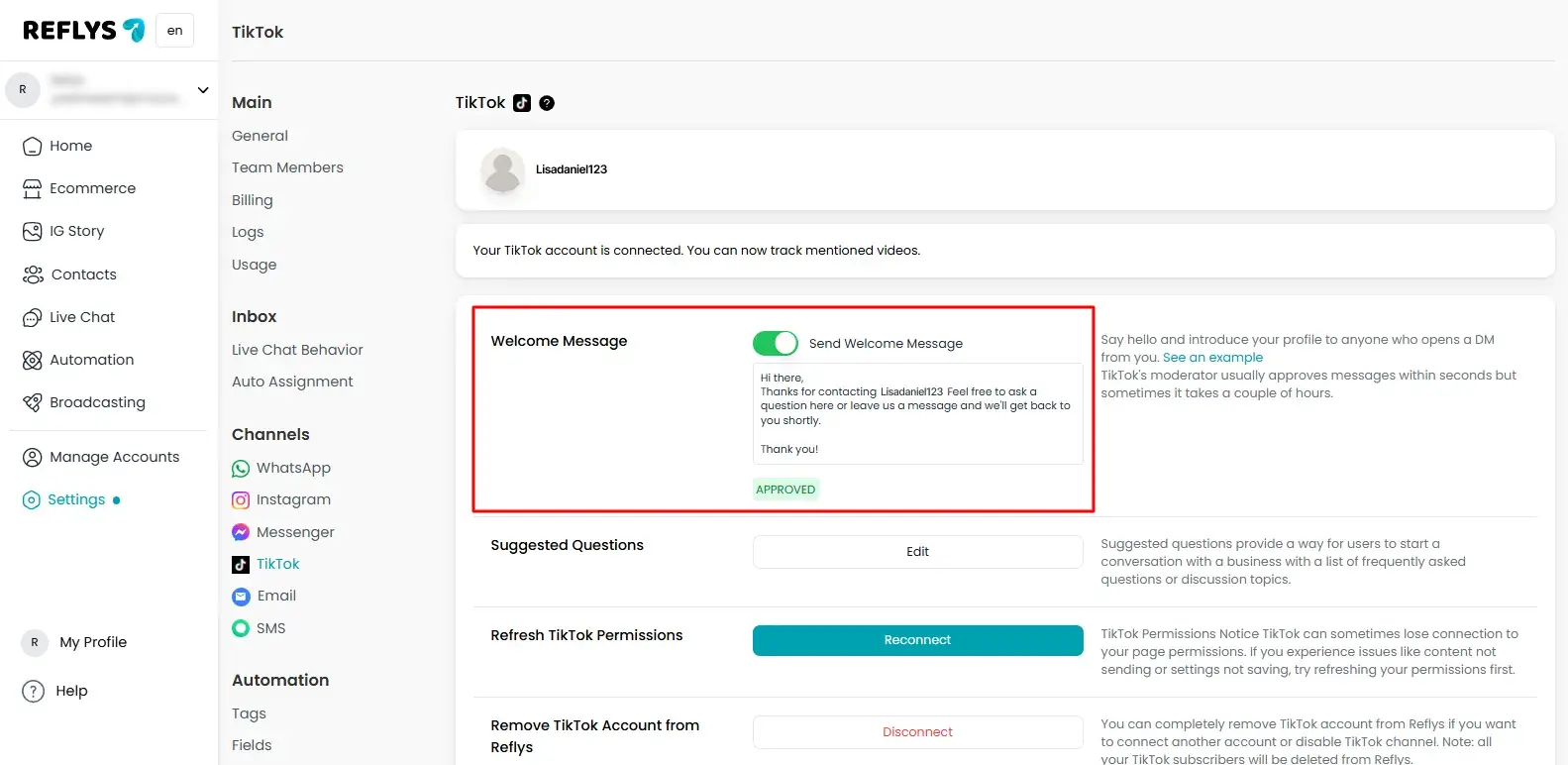
2. Select Welcome Message
Edit the Welcome Message to welcome new users.
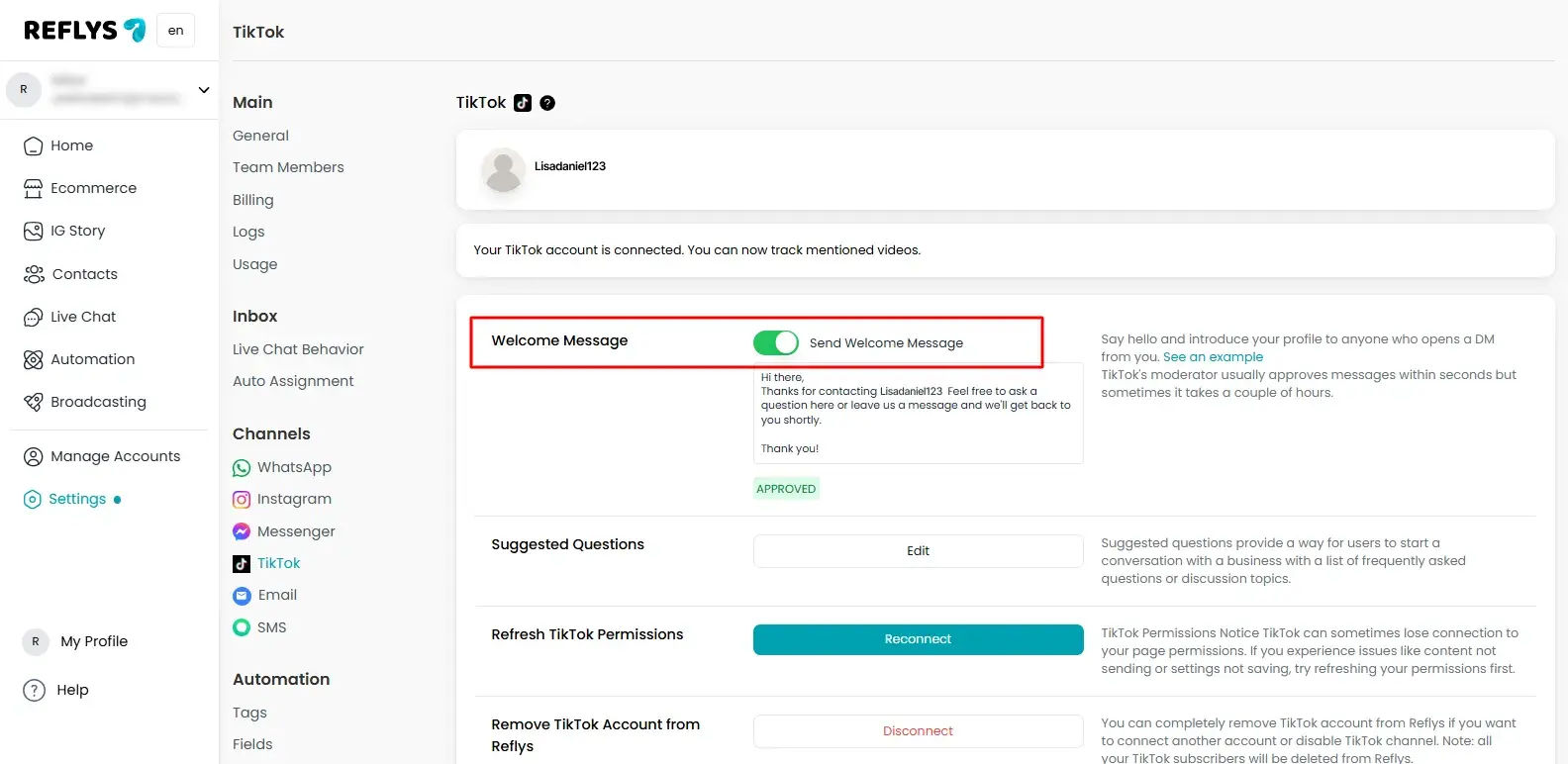
3. Activate the Message
Once you have successfully set up everything, click the Toggle On to activate your automation. Say hello and introduce your profile to anyone who opens a DM from you. That’s it, your welcome message is now active!
What Should Your Welcome Message Say?
Make it short, friendly, and helpful. You can also add Quick Reply buttons to guide users. For example:
- Welcome to [Your Business Name]!
How can we help you today?
Quick Reply Options could include:
- Book an Appointment
- Contact Support
- Track My Order
- See Our Services
Each button can trigger a separate automation to keep things organized and smooth for the user.
Limitations to Know
- The Welcome Message only shows once per user
- If someone already messaged your page before, they won’t see it again
- The only way to show it again is if they delete the conversation and start over
Troubleshooting the Welcome Message
1. Welcome Message Not Triggering?
- Make sure your automation is published
- Refresh permissions again
- Ensure that the Meta Handover Protocol is not preventing the message
2. Wrong Message Showing?
- It may be coming from another connected app or Facebook auto-response
- Visit Meta Business Suite, inbox -> automations and deactivate all Facebook auto-messages
- Other apps that may be sending messages are listed in Check Business Integrations
Pro Tips
- Keep your message short and friendly
- Prefer Quick Replies to guide users
- Choose personalized option to make it feel human
- Update your message often as your business changes
Need Help?
Still stuck? Not sure why your Welcome Message isn’t showing?
Don’t worry, just contact the Reflys Support Team. We’re always here to help.