
How to Connect Your TikTok Account with Reflys?
TikTok is one of the fastest-growing platforms for customer engagement. By connecting your TikTok account with Reflys, you can manage conversations, respond to messages, and create automated experiences, all from one dashboard.
This guide covers everything you need to know, including requirements, step-by-step connection instructions, limitations, and FAQs.
What You Need to Know Before Getting Started?
Before connecting TikTok to Reflys, please review the following important points:
1. TikTok Business Account Required
To connect TikTok with Reflys, your TikTok account must be a Business account.
Creator or Personal accounts are currently not supported.
If you’re using a Creator or Personal account, you’ll need to switch to a Business account from your TikTok settings before proceeding.
2. Regional Availability
TikTok’s official API is still rolling out gradually.
- TikTok integration with Reflys is not available in some regions such as countries like India, Afghanistan, Nepal, and Somalia.
- If your account is registered in these regions, you won’t be able to connect to TikTok yet.
There is currently no confirmed timeline for when this feature will become available in restricted regions.
3. Feature Availability
Since TikTok’s API is still evolving:
- Some automation and messaging features are available
- Others may be limited or added in future updates
Reflys will continue to expand TikTok capabilities as official support grows.
How to Connect TikTok to Reflys?
You can connect TikTok to Reflys in the following ways.
Step 1: Log in to TikTok and Switch Account to Business (If Needed)
If your TikTok is already a Business account, skip to Step 2.
On the TikTok App:
- Open TikTok
- Log in to your TikTok account
- Tap Profile
- Tap the Menu (☰) at the top right
- Go to Settings and Privacy
- Tap Account
- Tap Switch to Business Account
- Choose a category that matches your business (for example: Retail, Education, Services)
- Confirm the change
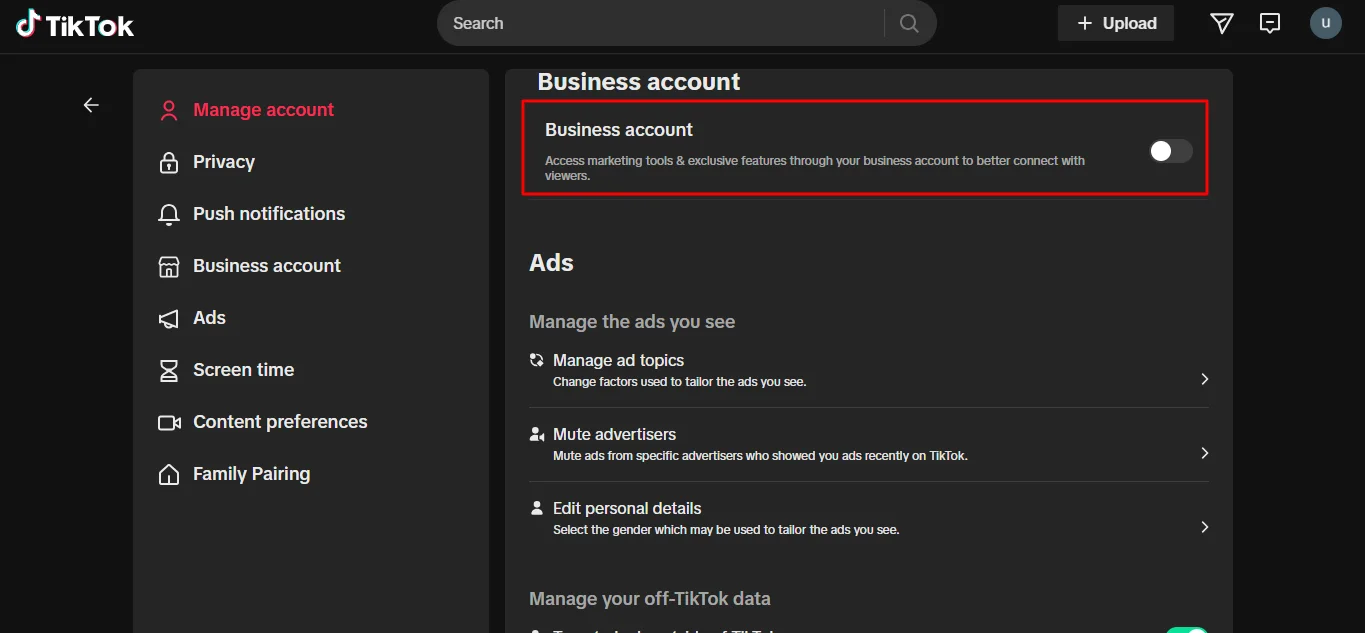
After this, your TikTok becomes a Business account.
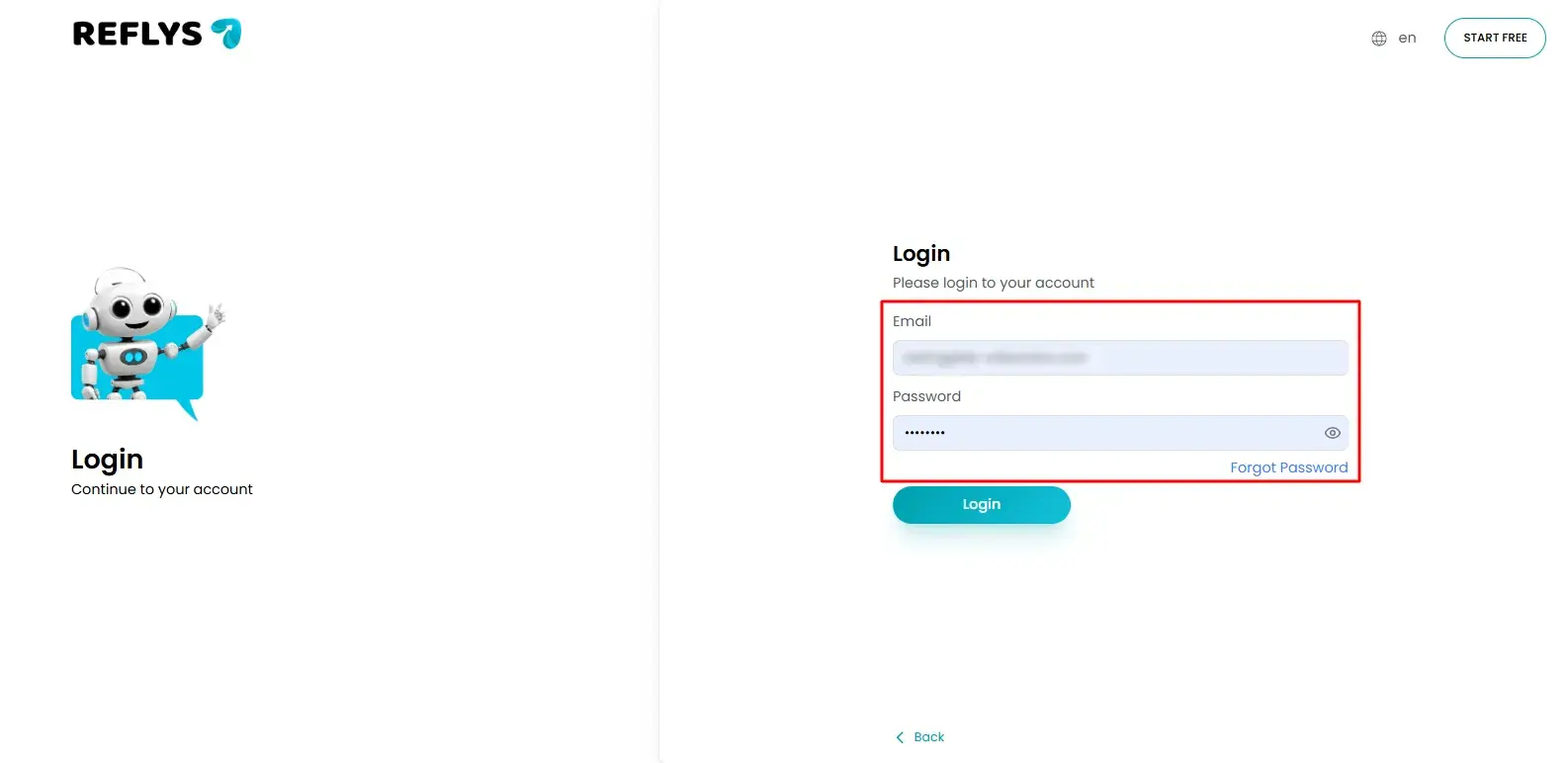
Step 2: Log in to Reflys
- Open Reflys in your browser
- Log in with your email and password.
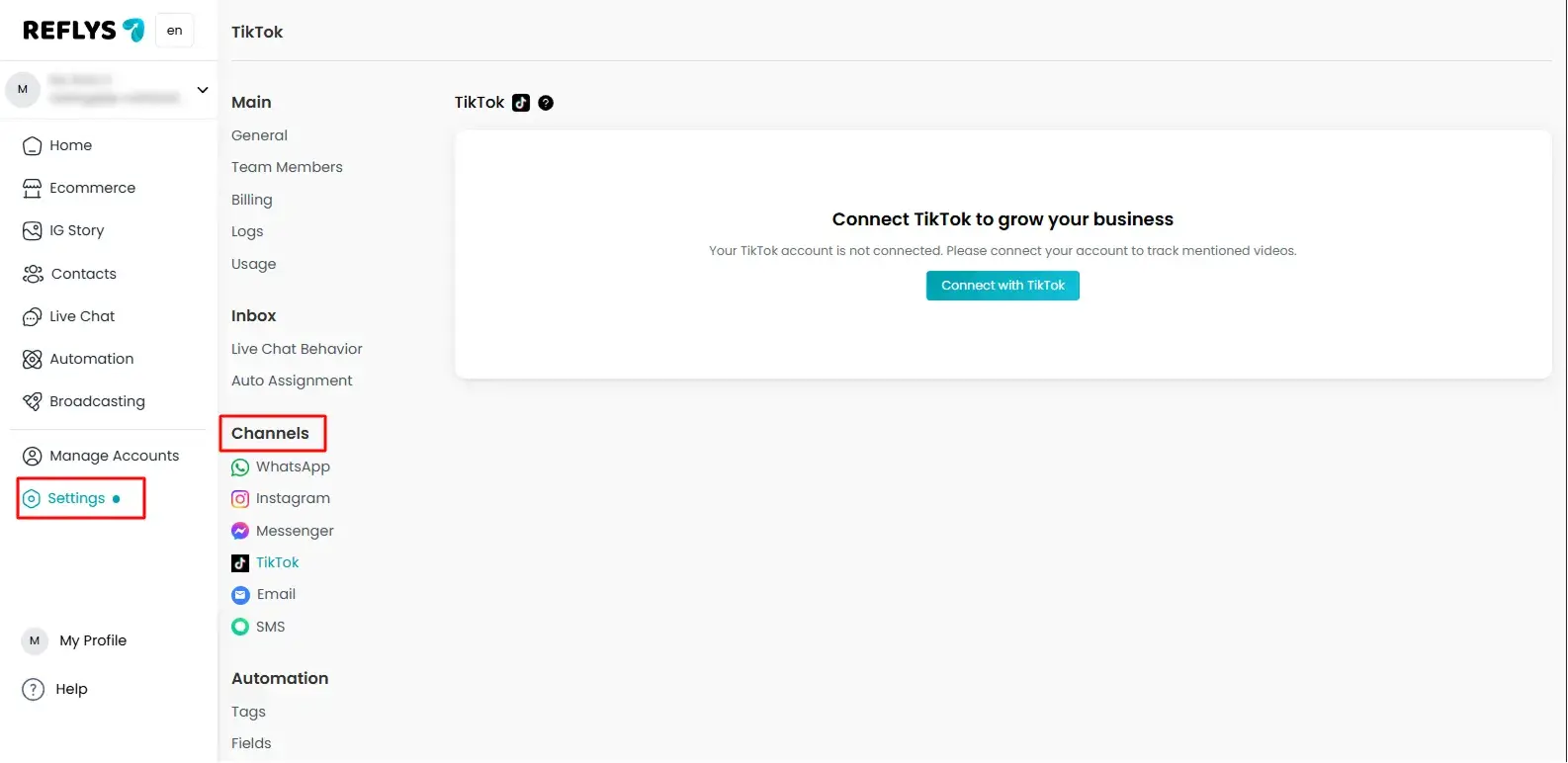
Step 3: Go to Settings in Reflys and Open Channels
- On the left sidebar (menu), find Settings
- Click Settings
- Inside Settings, find the option that says Channels
- Click it to open the list of platforms
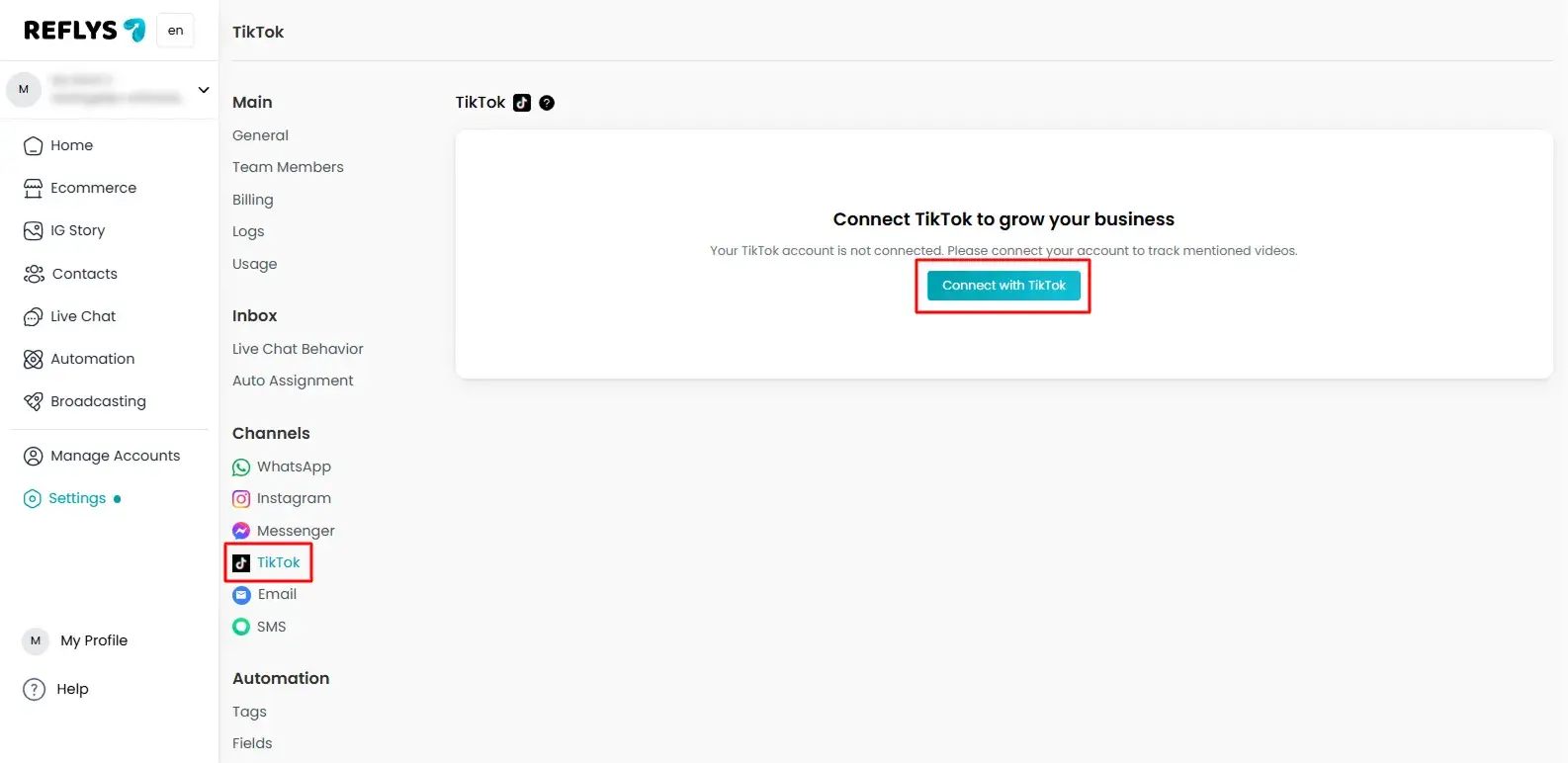
Step 4: Click “Connect” on TikTok
- In the Channels list, find TikTok
- Click the Connect button next to TikTok
This will open a connection window
Step 5: Open Reflys Permission Page
After connection, you will be directed to Reflys’ permission page.
- Read the permissions shown on the screen
- Click Authorize / Continue
- This is TikTok’s official secure connection screen.
- Click continue to connect your TikTok account with Reflys.
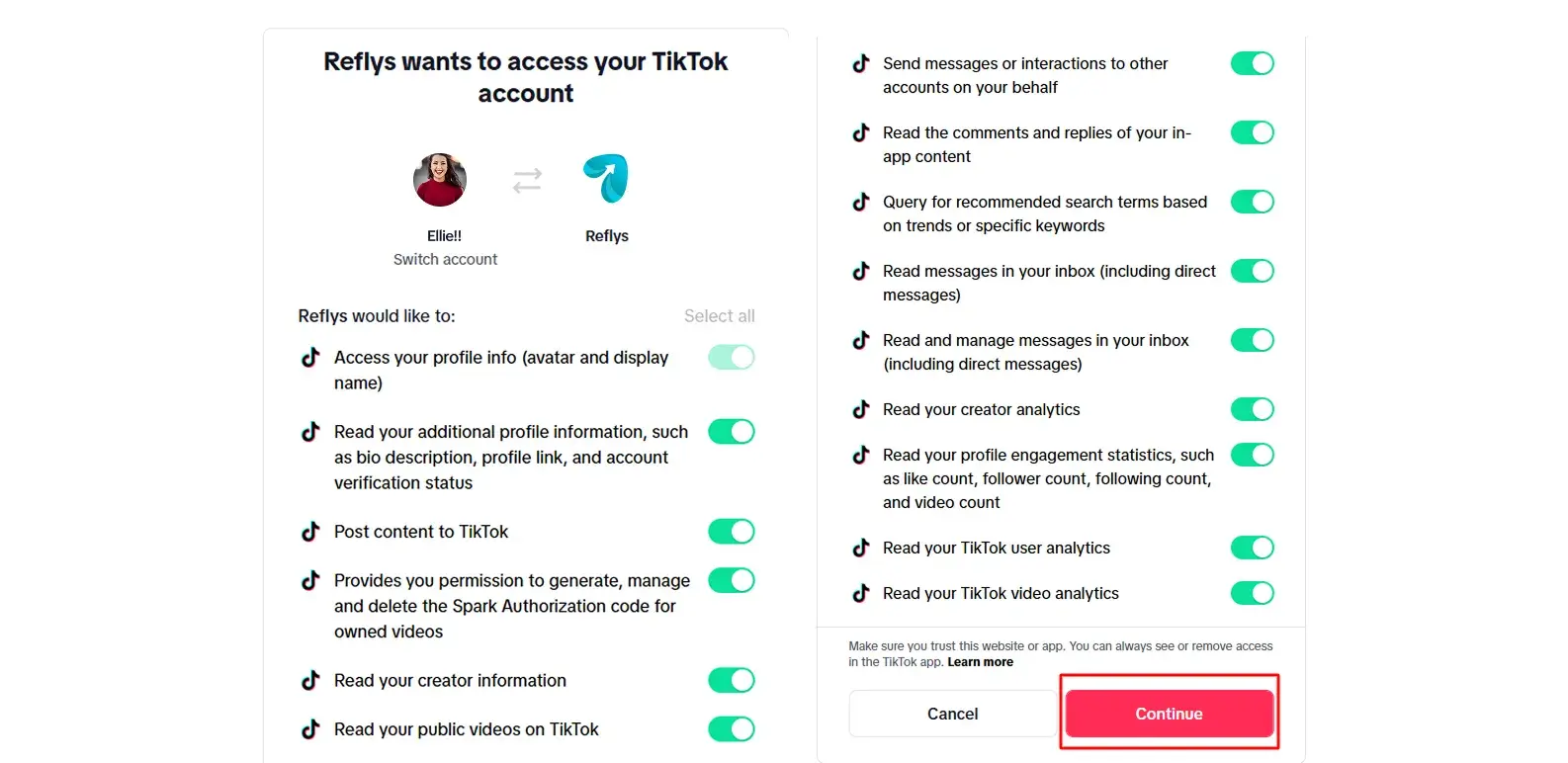
These permissions are needed so Reflys can:
- Access your TikTok messaging channel
- Help you reply and manage conversations
- Run automations (based on TikTok support)
Step 6: Return to Reflys and Confirm Connection
After authorization:
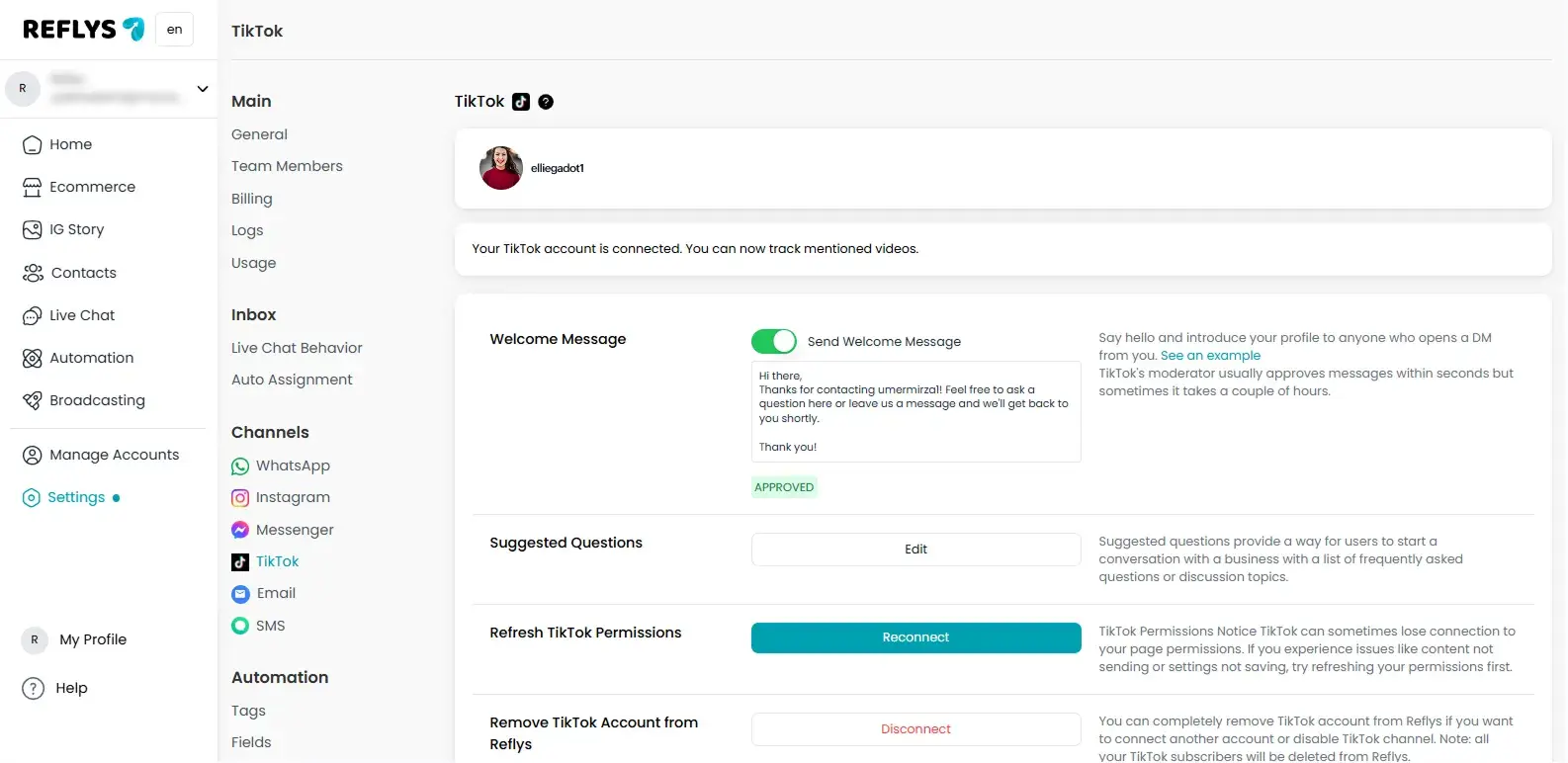
- TikTok will redirect you back to Reflys automatically
- Reflys will show a success message like:
- “TikTok connected successfully.”
- “You’re all set”
- A success/confetti screen
Frequently Asked Questions
No, Reflys donot charge any extra fee for TikTok. However, pricing may vary in case of additional contacts.
For now, you can only link one TikTok account per Reflys account.
Can I set up TikTok from the Manychat mobile app?
Yes, but functionality is limited on mobile. For the best experience, configure and manage your account using the desktop version.
If you disconnect TikTok from Reflys, all active TikTok message connections will stop and all existing automations linked to TikTok will pause. You can reconnect your TikTok account at any time by following the same connection steps again.