
How to Set Up TikTok QR Code Trigger in Reflys?
The TikTok QR Code trigger in Reflys lets you create a scannable code that opens a TikTok chat and starts an automation. This feature helps you turn offline visitors into online conversations. You can place the QR code on posters, product packaging, event stands, or business cards. When someone scans the code, they are guided into a TikTok message that starts your automation flow.
This guide explains how the QR code trigger works and how to set it up in Reflys step by step.
How does the TikTok QR Code Trigger Work?
When a user scans your QR code, TikTok opens on their phone. A chat window appears with a prefilled message. This message acts as the starting point of your automation. Once the message is sent, your Reflys flow begins.
The QR code stays the same after creation. If you later change the linked automation, the same QR code will still lead to the updated flow. If you delete the trigger, the QR code will stop working.
Steps to Set Up the TikTok QR Code Trigger
Before starting, make sure your TikTok account is connected to Reflys.
Make sure you have created or planned the automation flow you want to launch
Step 1: Open the Automation Section
Log in to your Reflys dashboard. From the main menu, click on Automations.
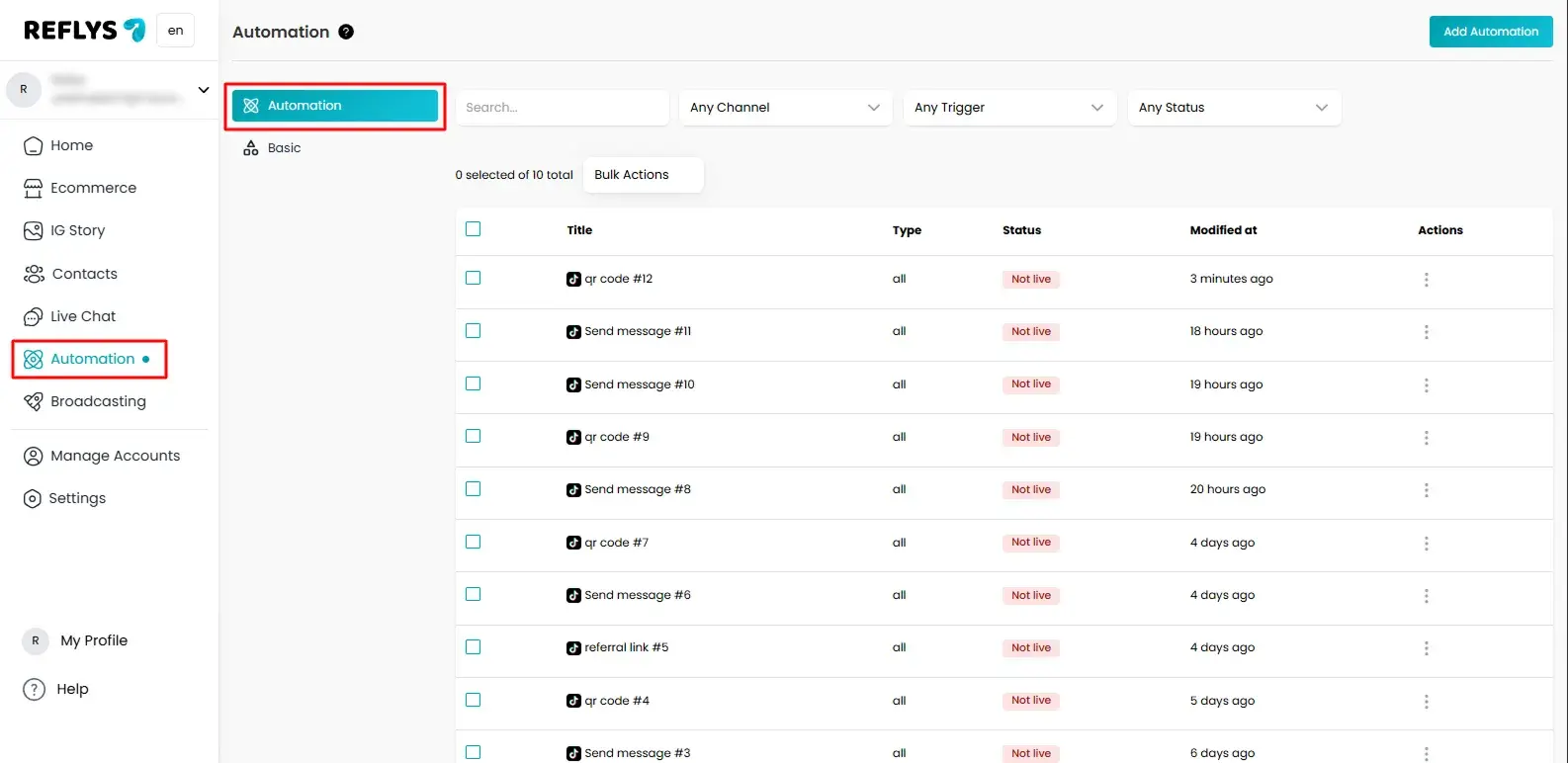
Step 2: Click Add Automation and Choose Start from Scratch
To create a new automation, select the trigger and click start from scratch button.
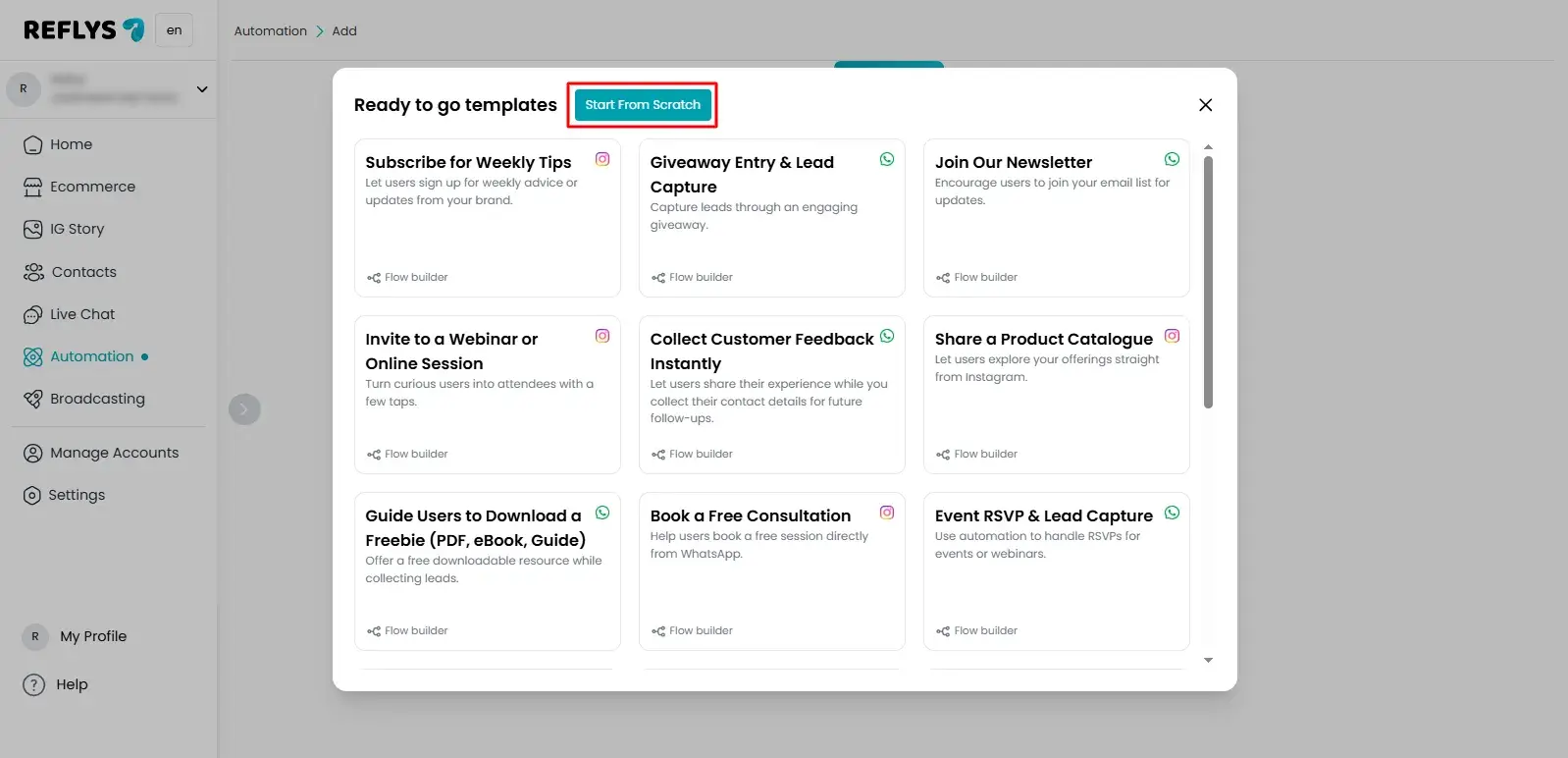
Step 3: Select TikTok Channel and Add QR Code Trigger
From the trigger list, select User Scans TikTok QR Code. The trigger will now appear in your flow.
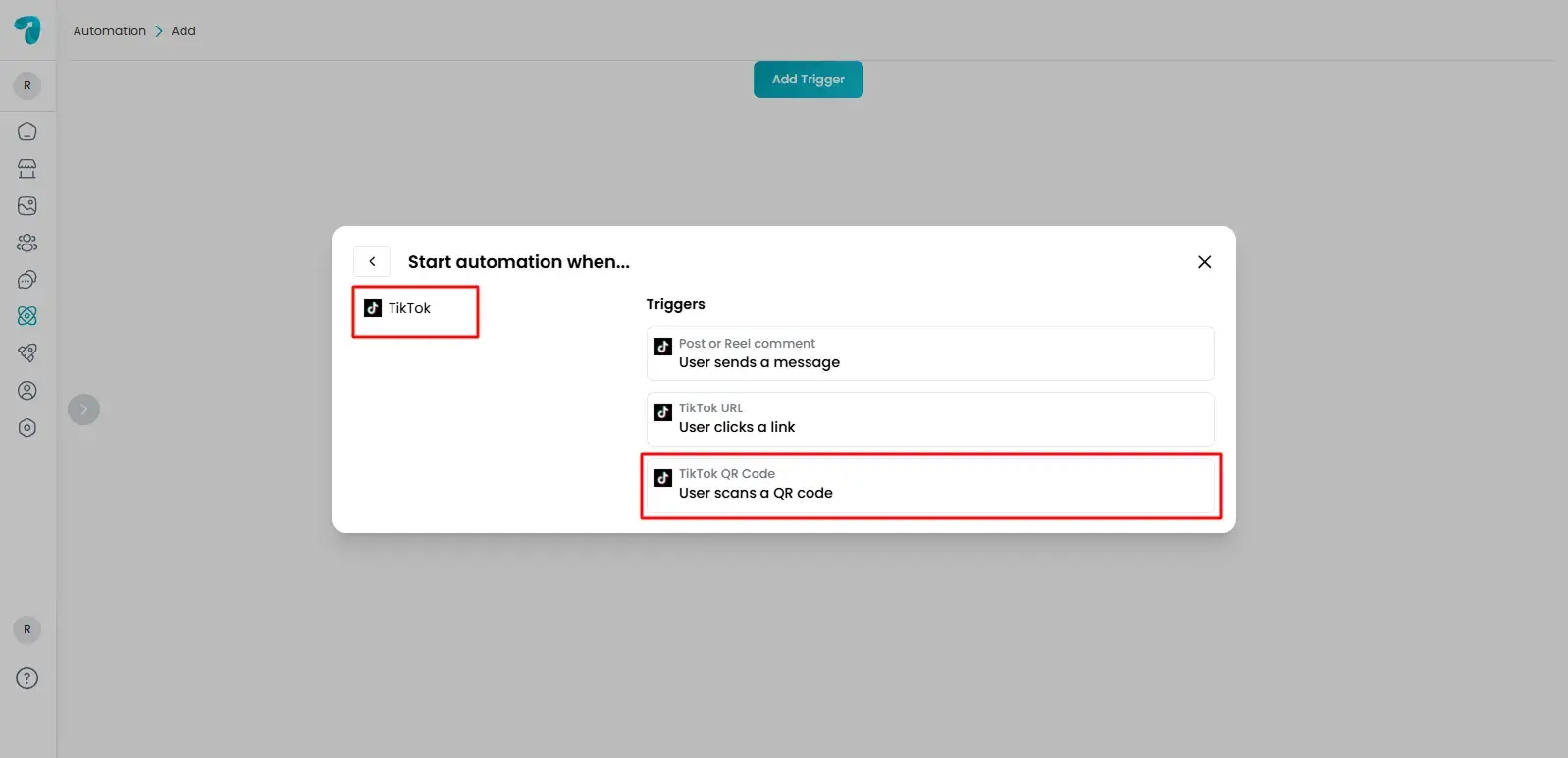
Step 4: Configure the Trigger Message
Click on the QR code trigger. A settings panel will open.
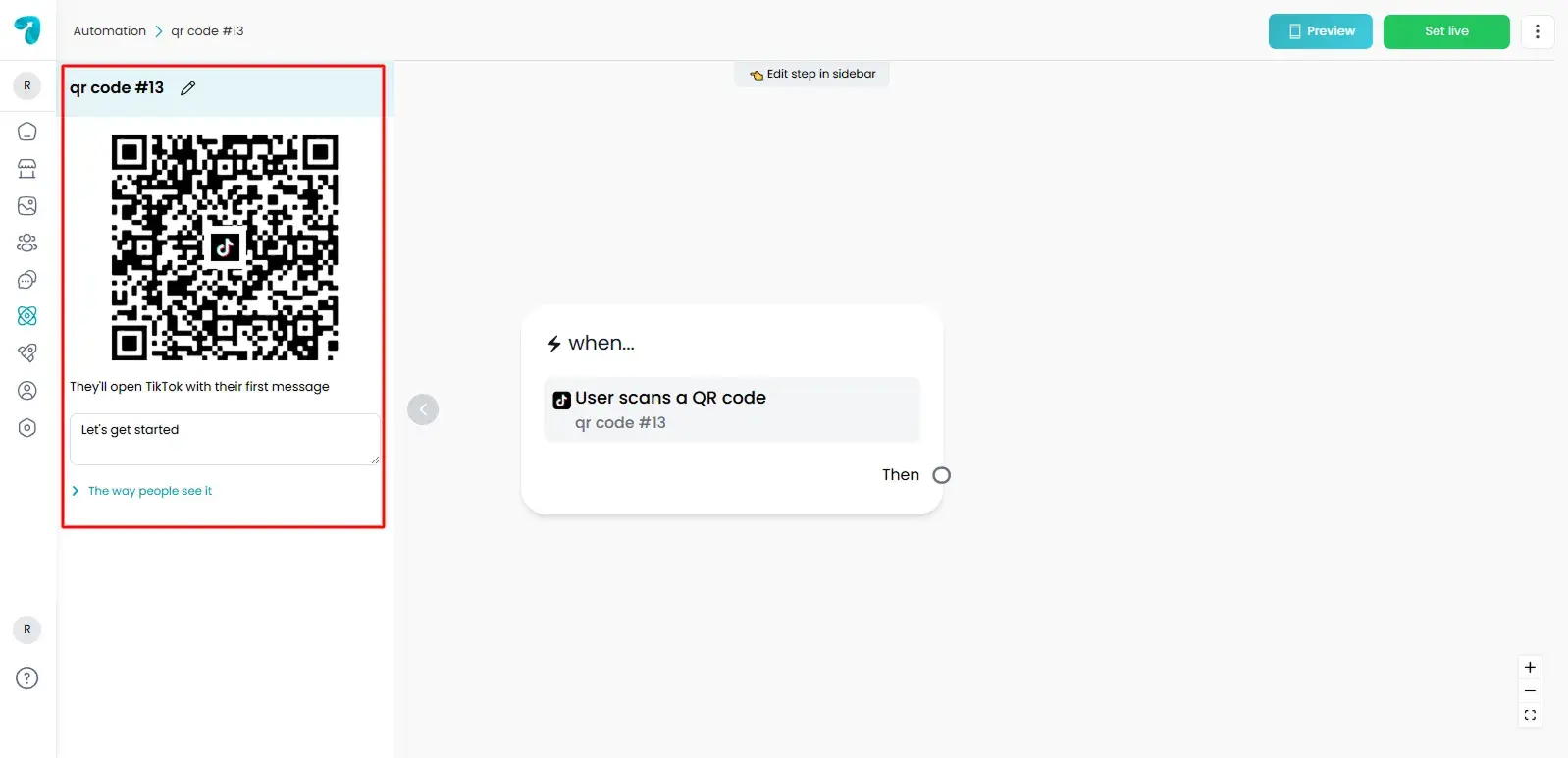
Here you will set the first message that appears when the user opens TikTok after scanning the code. This message is important because it starts your automation. Keep it short and clear.
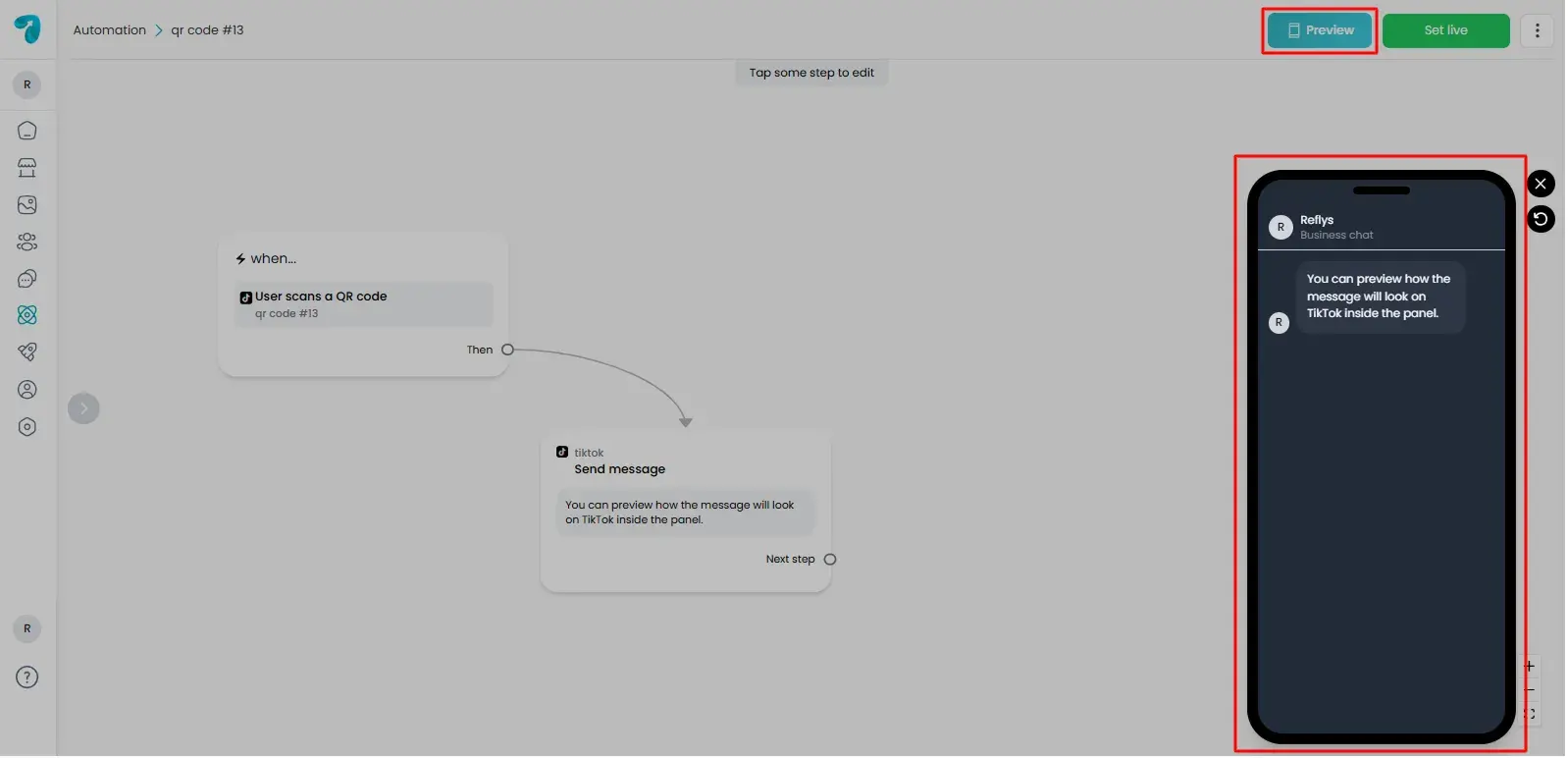
Step 5: Preview the Automation
You can preview how the message will look on TikTok inside the panel.
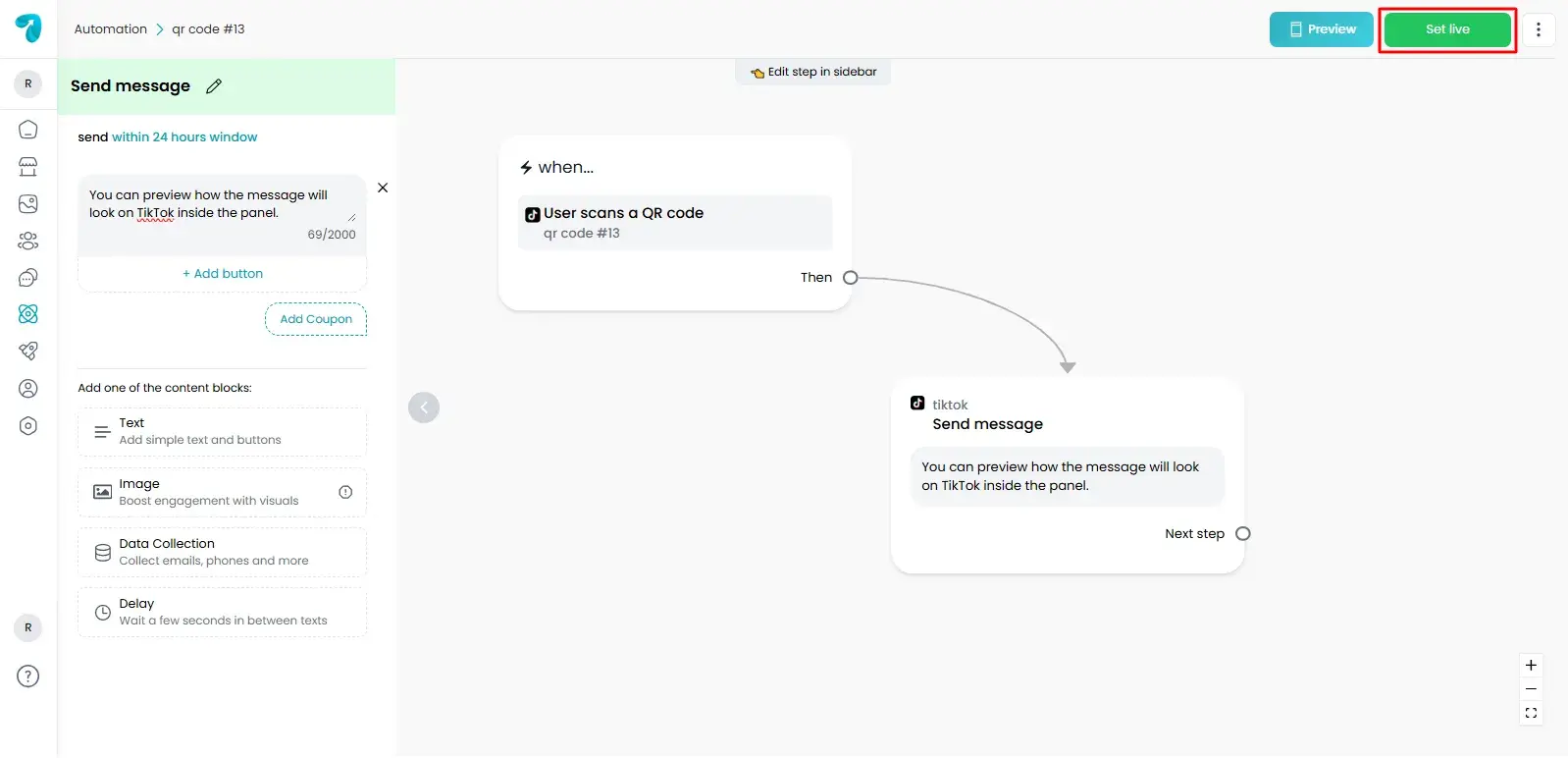
Step 6: Set the Automation Live
Once your flow is ready, click Set Live. Your automation is now active and ready to receive users from the QR code.
Testing the QR Code
Scan the QR code using your phone camera.
- TikTok should open and display the chat with your preset message.
- Send the message and confirm that your automation starts correctly.
Tips for Better Results
Below are some tips for better results.
- Place your QR code where people can easily scan it.
- Use short and friendly trigger messages.
- Test the QR code after any flow update.
- Keep your automation simple for first-time users.