
How to Generate Sales after Connecting Your Store with Reflys
Once you have any store connected to it, i.e, Shopify, WooCommerce or BigCommerce with Reflys, you can begin to create campaigns, discount codes, and monitor sales all in the same platform. This guide will assist you in going through the process step by step.
Step 1: Create and Customize Coupons
One of the best methods of converting leads into paying customers is through coupons. Reflys enables you to generate, personalize, and send coupon codes in Shopify, WooCommerce, and BigCommerce.
How It Works Across Platforms
- Shopify: Reflys allows you to generate price rules and connect a discount code to your Shopify store.
- WooCommerce: WooCommerce does not have its own price rules, so Reflys can do it on its own and create codes that are compatible with WooCommerce.
- BigCommerce: Reflys generates coupons and links them directly to your BigCommerce store.
Steps to Create a Coupon
- Go to Coupons
- Using your Reflys dashboard, go to E-commerce stores and then coupons.
- Click Add New Coupon on the right side.
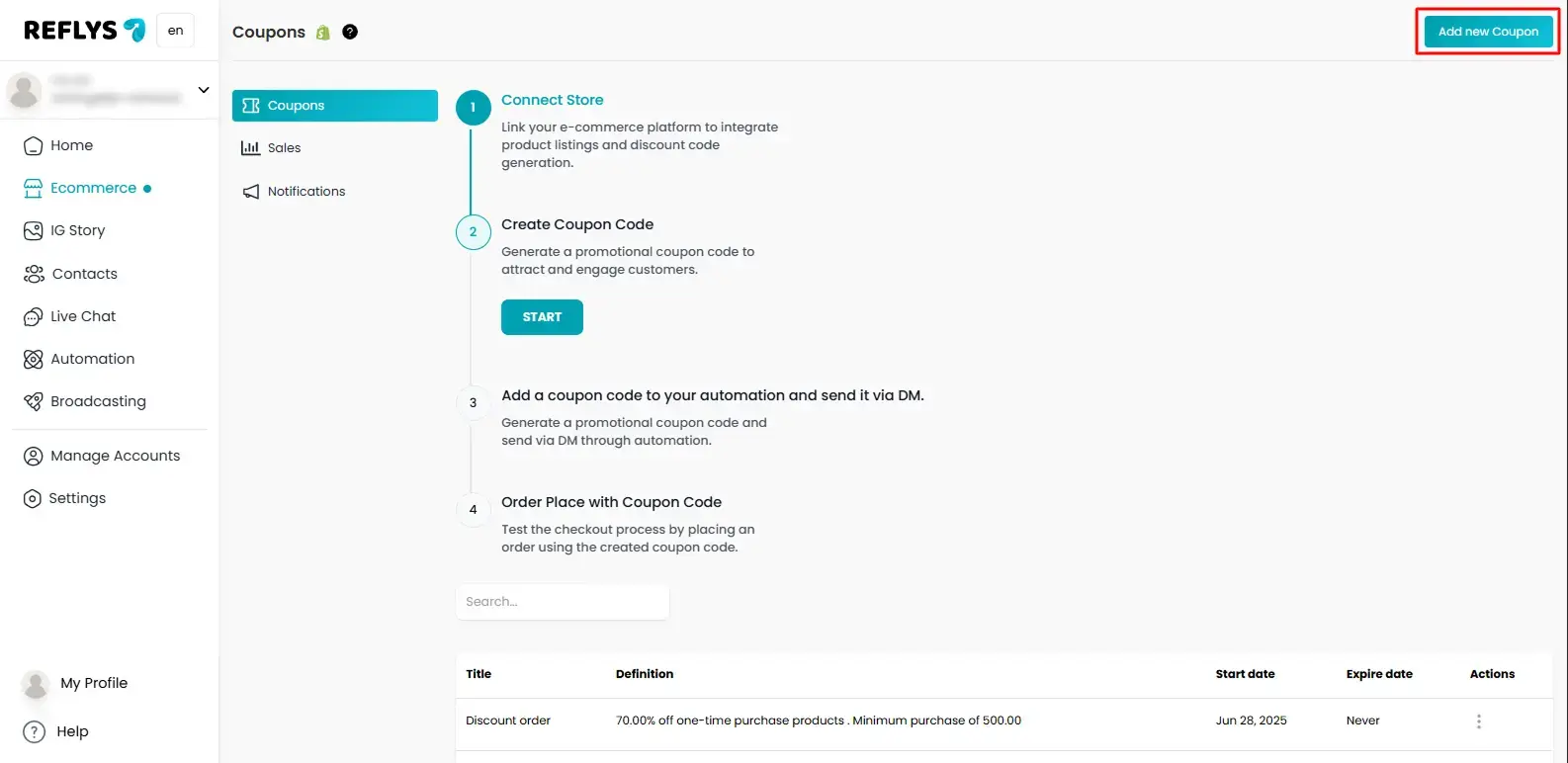
2. Fill Out Required Fields
The following information is to fill in the coupon form:
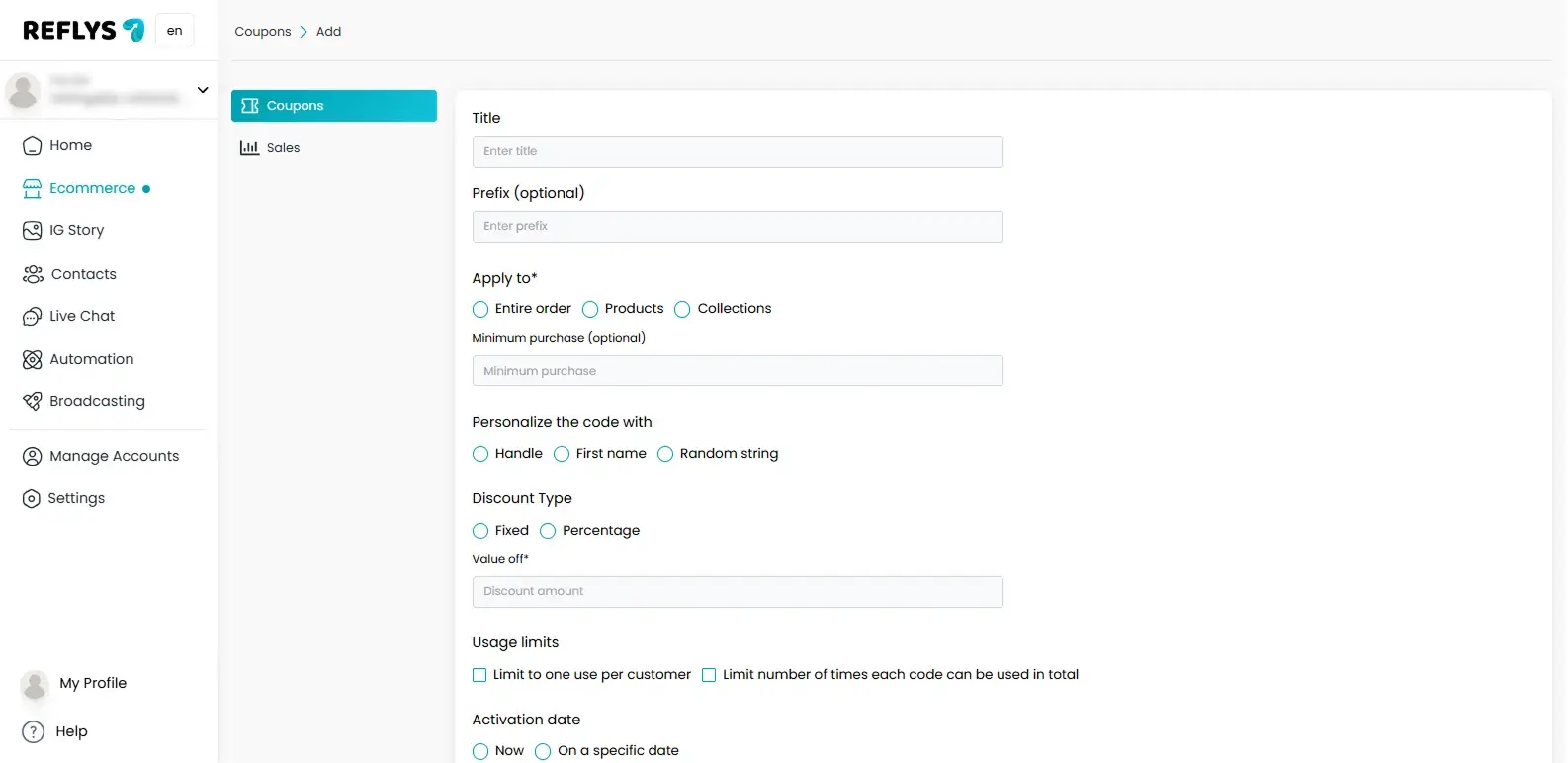
|
Field
|
Description
|
|---|---|
- Save & Activate
The coupon codes will be automatically generated according to your settings by Reflys. New codes are being given to any new customer who fits your segment until the expiration date.
Step 2: Distribute Coupons to Customers
After creating coupons, you can copy the code and distribute it in various ways:
- WhatsApp Automation: Send coupons messages immediately upon engagement.
- Instagram DM & Facebook Messenger: Share discount codes with followers who engage with your brand.
- Email Campaigns: Automatically pull and display the Reflys_Discount_Code property in personalized emails.
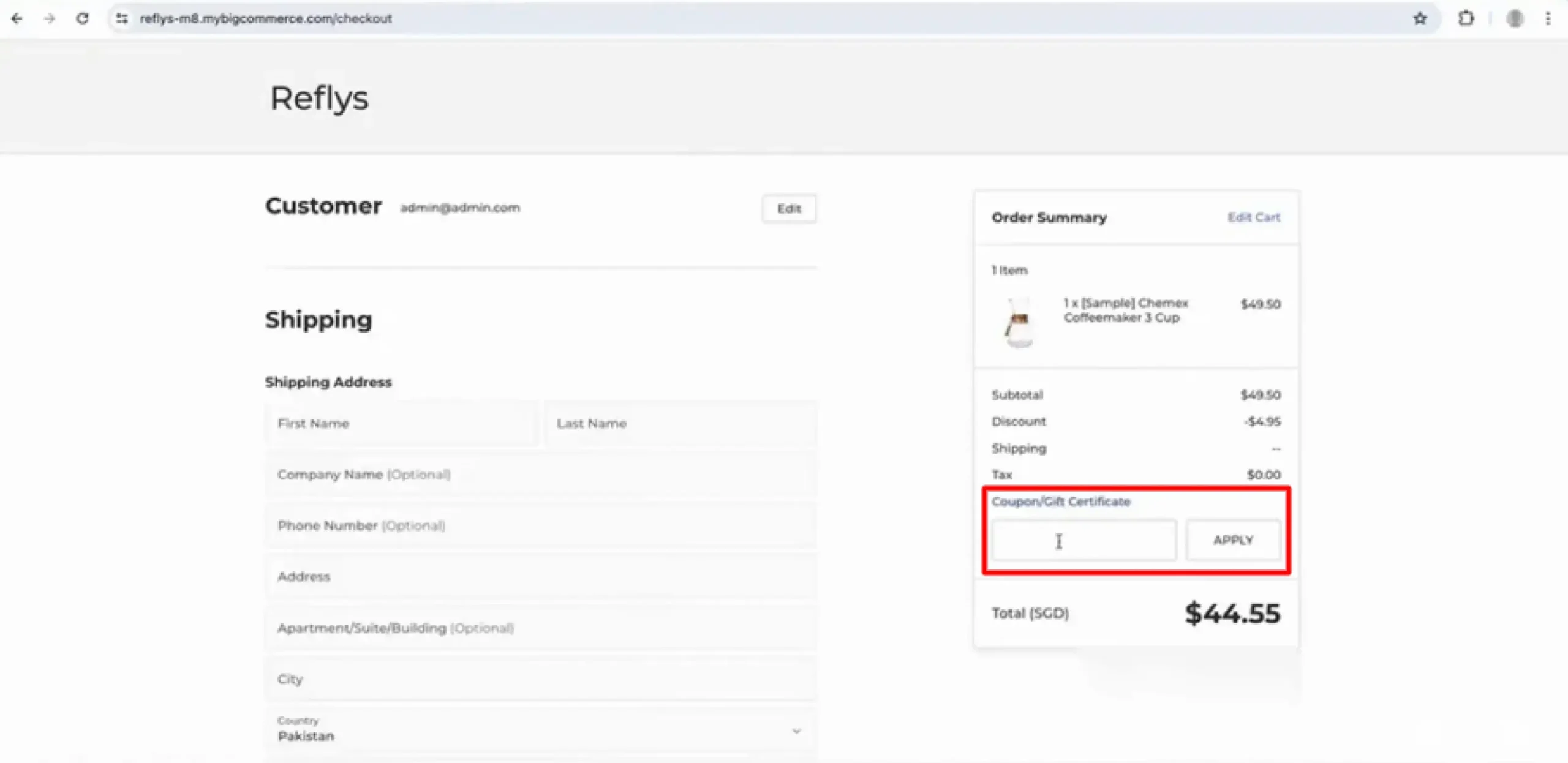
Step 3: Use the Coupon code in the E-commerce store
After you have obtained the coupon code, paste it into any of your integrated stores, Shopify, WooCommerce, or Bigcommerce, to receive a discount on a specific product. A coupon code is usable at checkout
Step 4: Track your Sales Campaign
Sales campaigns enhance your coupons and assist in marketing selected products.
- Go to Sales Campaigns
- In the Reflys dashboard, click Sales Campaigns under the E-commerce subheading.
- Click Create New Campaign.
- Customize Your Campaign
- Title: Friendly campaign name (e.g., “Weekend Mega Sale”).
- Products: Select which products/collections to promote.
- Campaign Type: Choose from Discount Campaign, BOGO Campaign, or Flash Sale.
- Dates: Set campaign start and end dates.
- Headline/Copy: Add attention-grabbing text.
- Activate the Campaign
Check out the details and hit Activate to go live.
Step 5: Track and Optimize Sales
Reflys will also allow you to manage all orders in one database once your store is connected and the sales begin to arrive.
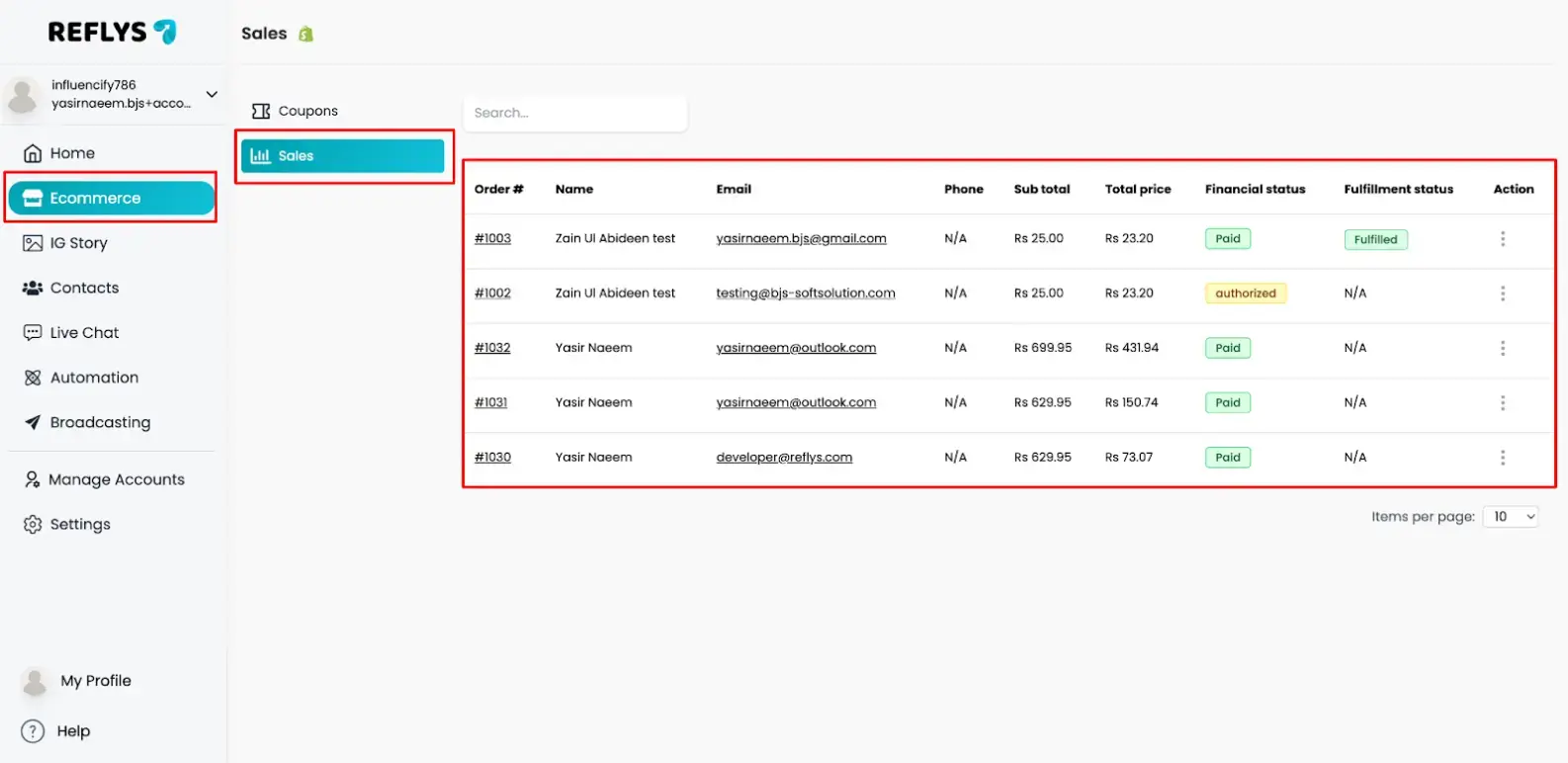
- Go to E-commerce → Sales
In your Reflys dashboard, navigate to the left-hand menu and open the Ecommerce menu, and choose Sales. - View Sales Details
Your orders will be displayed in a table (as in the screenshot). The following are important details that can be tracked here:
- Order # – A unique ID for each purchase.
- Customer Name & Email – The person who placed the order and their contact details.
- Phone – Customer phone number (if provided).
- Subtotal & Total Price – The value of the order before and after discount or tax.
- Financial Status – Indicates if payment is Paid or Authorized.
- Fulfillment Status – Indicates whether the order is fulfilled or pending.
- Take Quick Actions
Beneath Action on the right-hand side of each row, you can take further action with orders, such as viewing more details, updating fulfillment, or addressing problems.
This dashboard provides you with the real-time performance of your coupons and campaigns. Apply these findings to determine what promotions yield the best conversions and use this as a guide to optimize for better results.
Once your store is connected, the first step is to create Coupons to encourage sales, then use Sales Campaigns to monitor your performance and improve your approach to continuous development on Shopify, WooCommerce, and BigCommerce.