How to Sign Up, Sign In, and Manage Your Reflys Account
To manage your activities on Reflys, it is essential to log in with Reflys. Whether you’re a new user or already have an account, this guide helps you from creating an account to switching profiles.
1. Signing Up for Reflys
If you’re new to Reflys, you’ll need to create a Facebook account first. Go to Reflys’ website
Sign Up with Facebook
- Go to the Reflys Sign Up page.
- Click Continue with Facebook.
- If you’re already logged into Facebook, Reflys will ask for your permission to connect your account.
- Click Allow to proceed.
- 4. If you don’t have a Facebook account, you’ll be redirected to the Facebook website to create one. Once done, return to Reflys and continue with Facebook login.
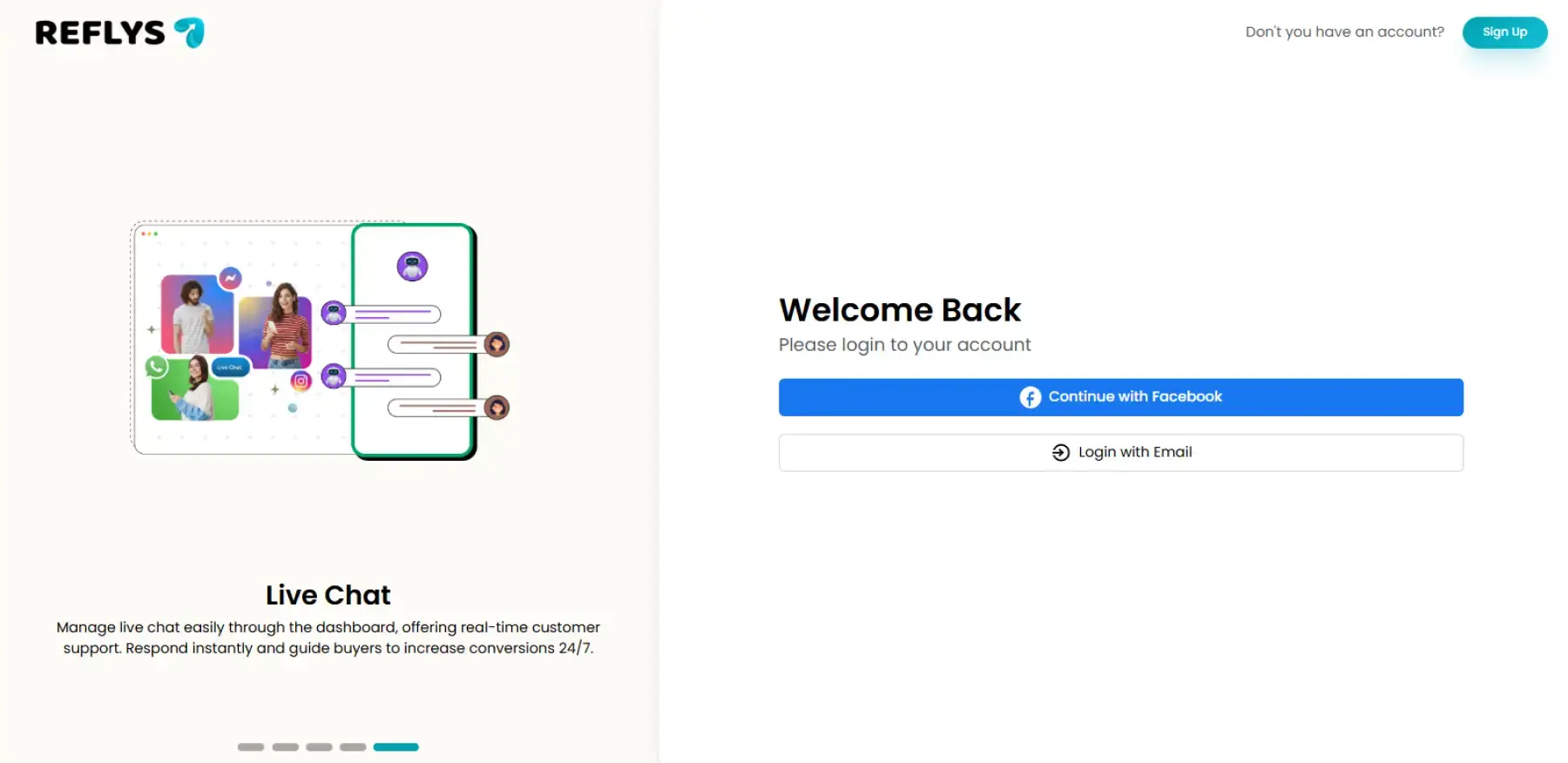
Once permissions are granted, your Reflys account will be created automatically.
Your new Reflys account is now ready to use.
2. Signing In to Reflys
If you already have a Reflys account, logging in is quick and easy. You can log in using either Facebook or Email + Password.
Option A: Continue with Facebook
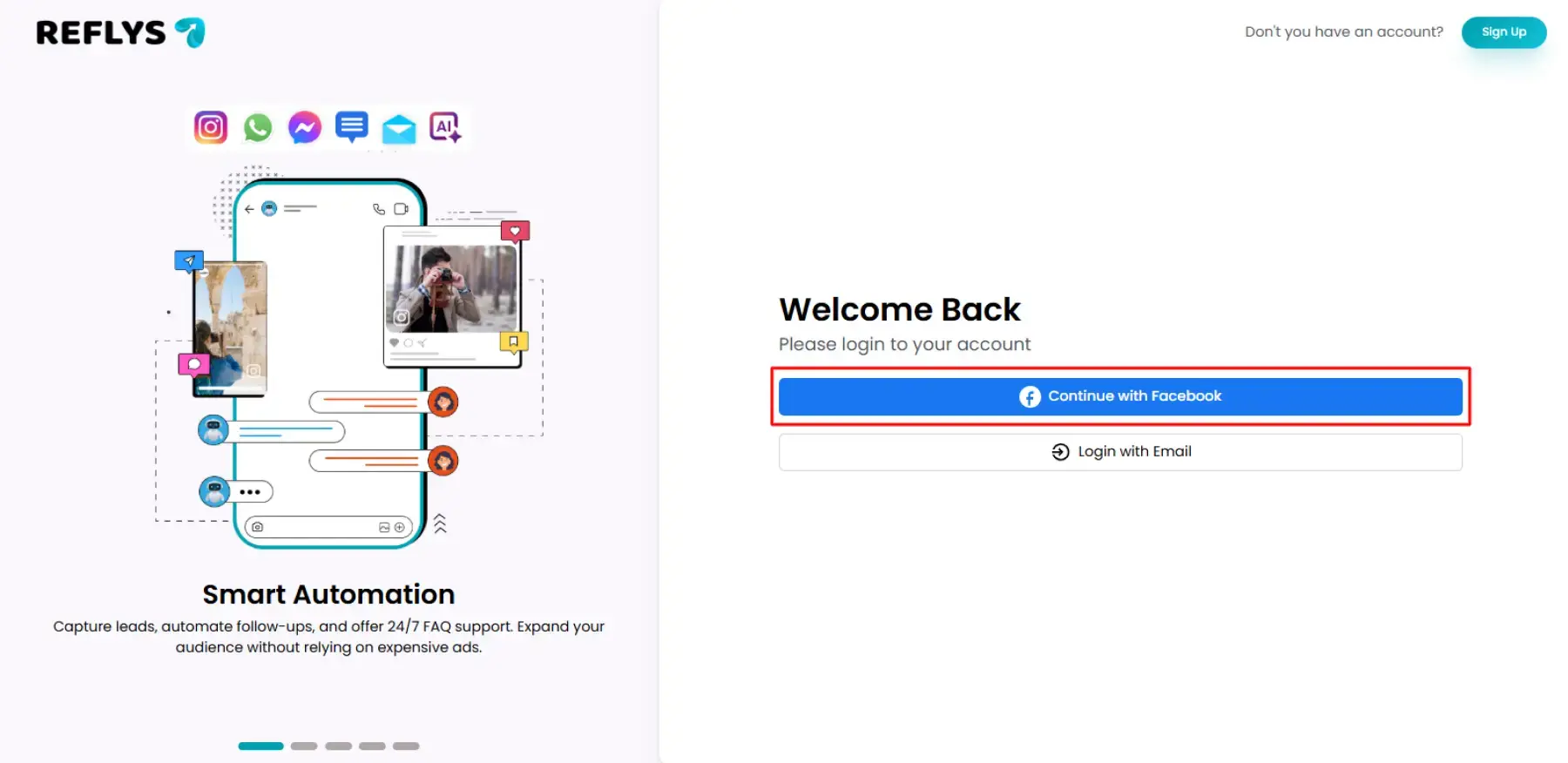
- On the Reflys Login page, click Continue with Facebook.
- If you are logged into Facebook, you’ll be taken directly to your Reflys dashboard.
- If not, you’ll first log in to Facebook, then allow access to Reflys.
Option B: Login with Email Address & Password
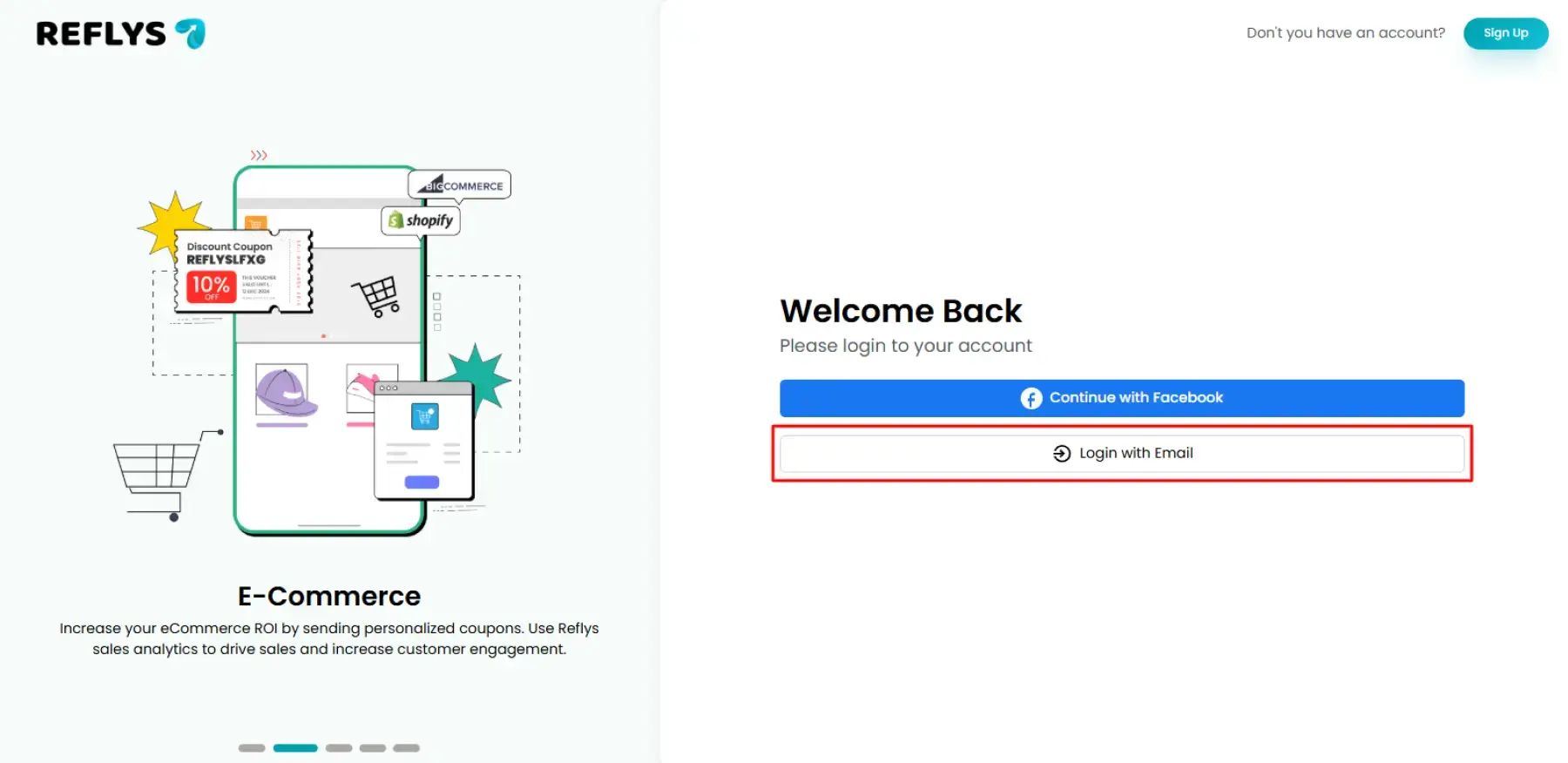
- On the Login page, click Login with Email.
- Enter your registered email and password.
- Click Login.
- You’ll be redirected to your Reflys dashboard.
3. Managing Your Reflys Account
Once you’ve logged in, you can manage your account settings and switch profiles if needed.
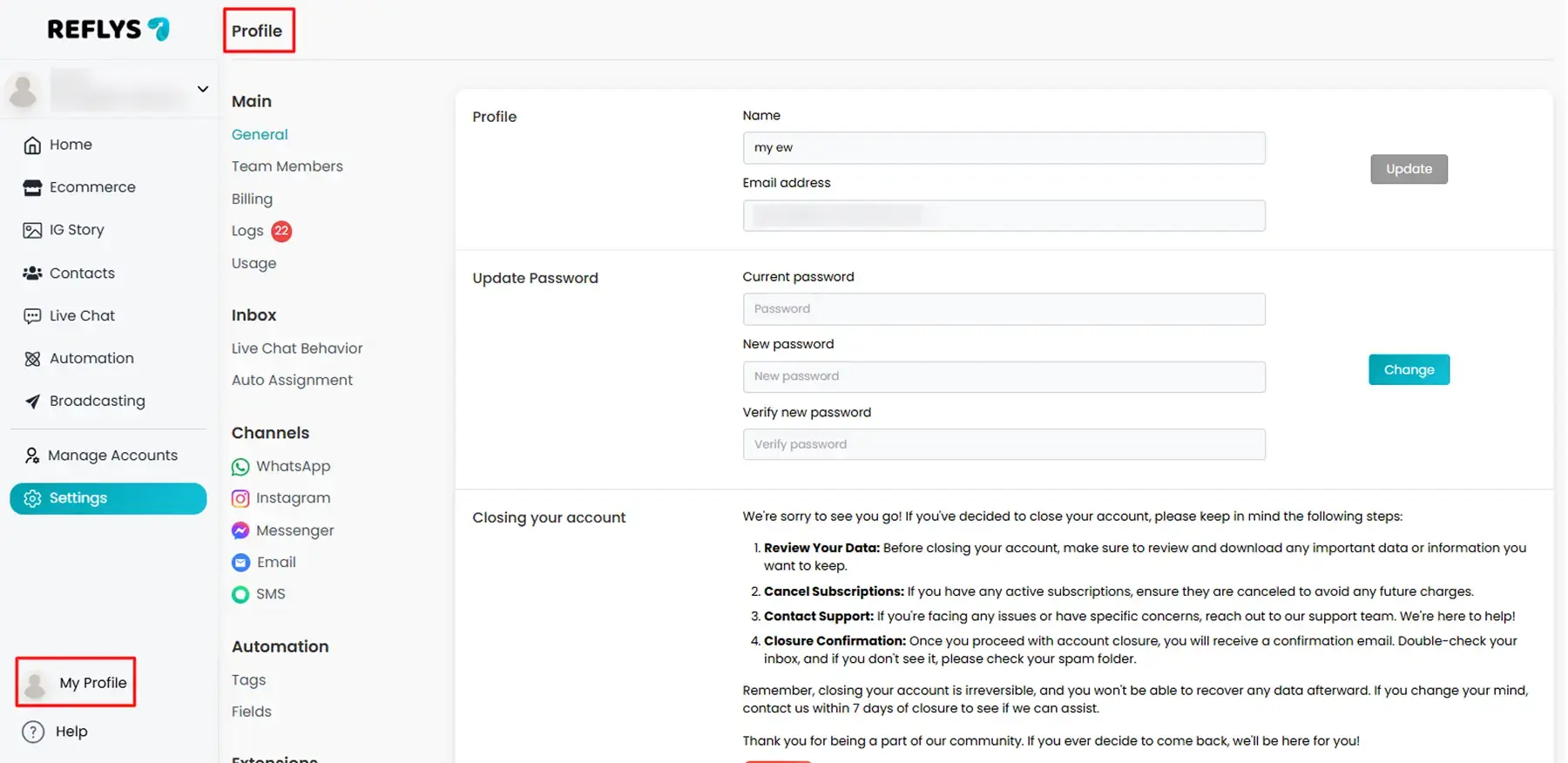
A. Update Your Account Information
- Go to Profile Settings from the left corner of your dashboard.
- Here, you can:
- Update your name and profile picture.
- Change your email or password.
Manage notification preferences
B. Switching Between Profiles
If you manage multiple Reflys profiles (for example, different businesses or workspaces), you can easily switch between them without logging out:
- Click on your profile icon in the left corner.
- Select Switch Profile.
Choose the profile you want to access
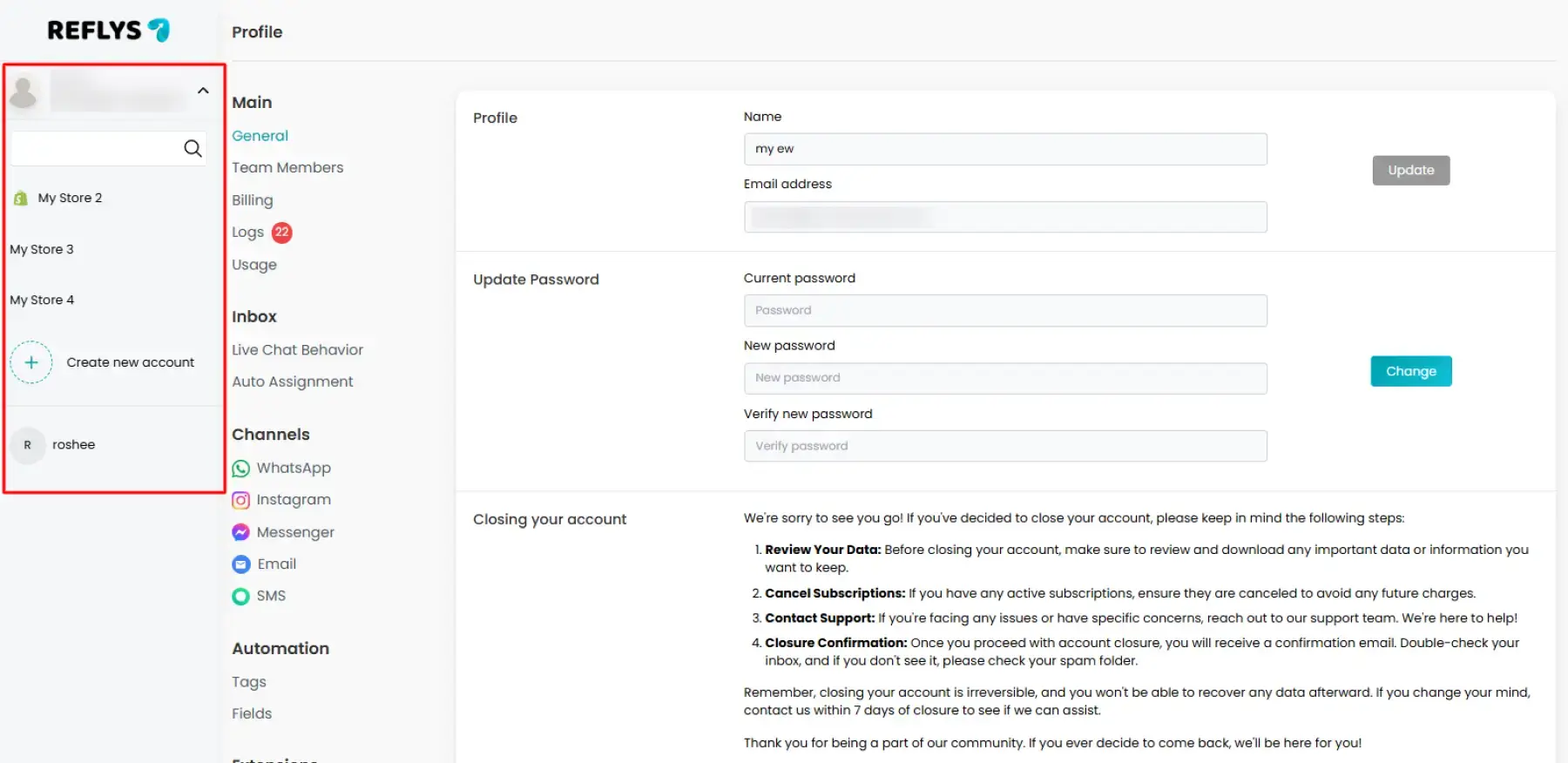
This feature is especially helpful if you’re managing more than one brand or project inside Reflys.
4. Account Management in Reflys
With Reflys, you can manage all your business conversations in one place. Your account is designed to connect with messaging platforms so you can handle customer interactions easily.
Connecting Channels
In Reflys, you can connect your business accounts from multiple channels, such as:
- Facebook Messenger
Each Reflys account can only be linked to one business account per channel.
- Example: You can connect one WhatsApp Business account, one Instagram account, and one Facebook Page to the same Reflys account.
Managing Multiple Business Accounts
When you have more than one business of the same type (i.e. two different WhatsApp numbers, or two Instagram accounts), you will need to create separate accounts in Reflys to manage them.
- Every Reflys account will be separate and have its own settings, contacts, and billing.
- With the Switch Profile option, you can easily move between accounts without having to log out each time you switch.
Switching Profiles
In case you have more than one Reflys account (different business or project), you do not have to log in and log out every time.
- Tap on your profile picture in the top-right corner of your dashboard.
- Manual Switch Profile
- Select the account to which you would like to gain access.
This enables one to easily keep track of many businesses with just a single login.
5. Troubleshooting Common Issues
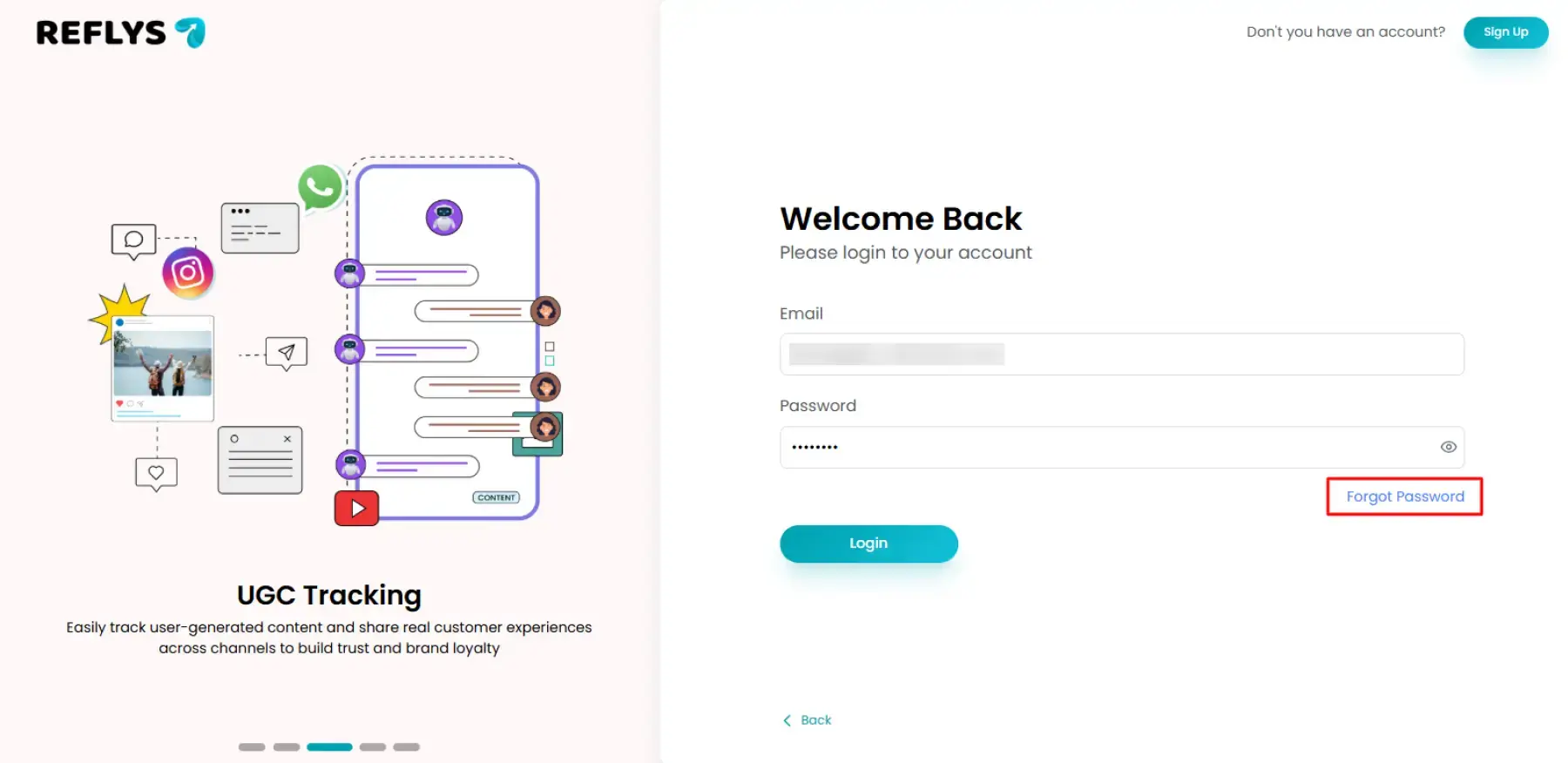
- Forgot your password?
- Click Forgot Password on the login page.
- Enter your registered email address.
- You’ll receive a password reset link.
- Can’t log in with Facebook?
- Make sure your Facebook account is active.
- Ensure you’ve granted Reflys the required permissions.
- If you removed Reflys’ access from Facebook, reconnect through the login page.