
How to Use WhatsApp List Messages in Reflys?
What is a List Message?
A list message is a menu that shows options your customers can tap in WhatsApp. In Reflys, you can add a title, a message description, a footnote, and a menu title. You can then add up to 10 options. Each option is a separate choice your customer can select. This article explains how to build, configure, and handle list messages in Reflys, step-by-step with examples and tips
When to Use a List Message
- When you want to give customers a few clear choices.
- When you want customers to select one option and continue the conversation.
- When you want your flow to guide the customer depending on their choice.
Things to Remember
- Decide what your list is for.
- Write a short title for the list.
- Write a simple message description explaining the list.
- Write a small footnote if needed.
- Decide on the menu title that goes above the options.
- Write the option names (up to 10). Each option can have one or more choices added.
Steps to Create a List Message
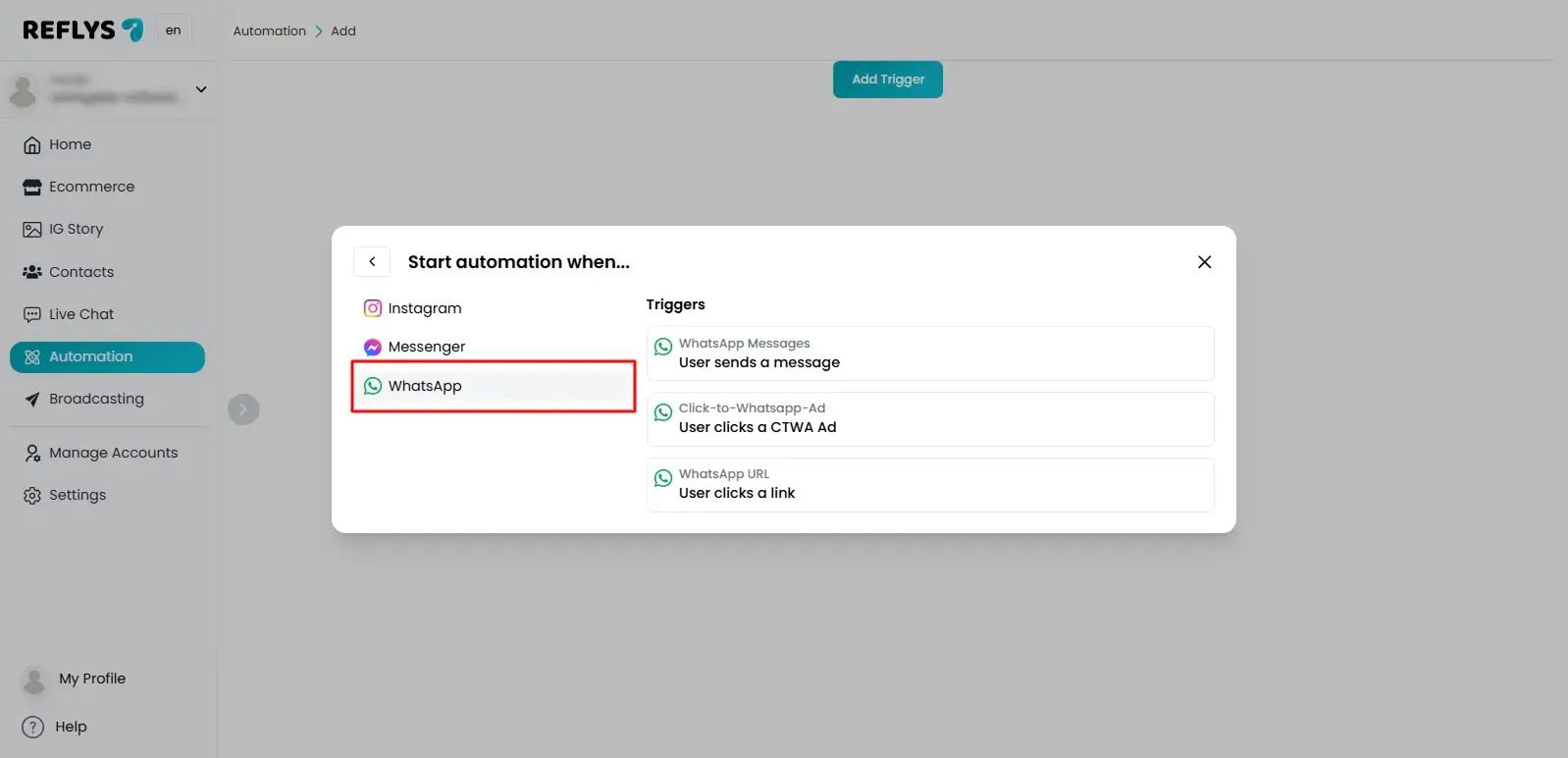
1. Open Your Flow
Go to Reflys dashboard, open your automation flow, choose WhatsApp and create a new automation.
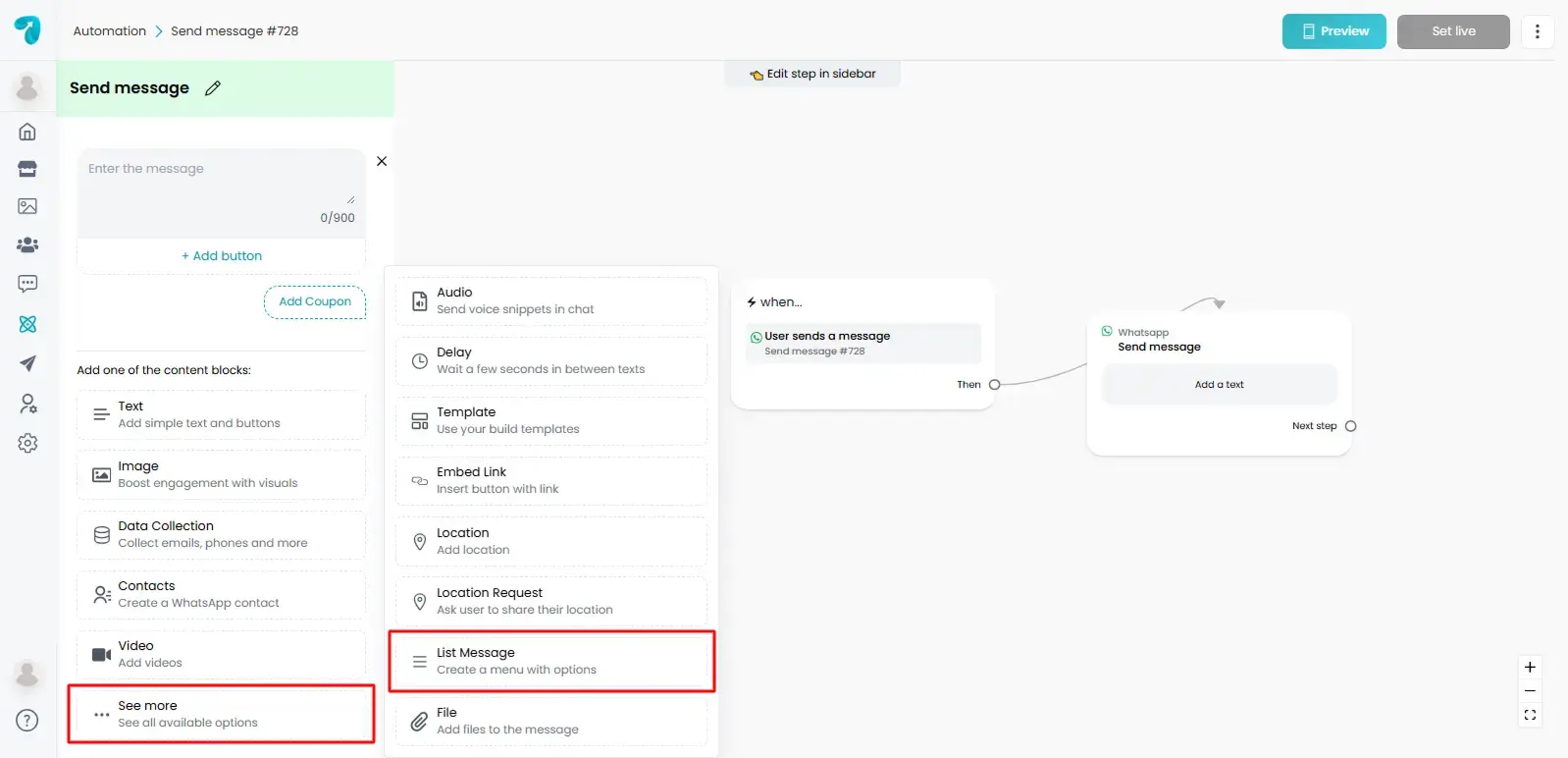
2. Add a List Message Block
Click See More and select List Message.
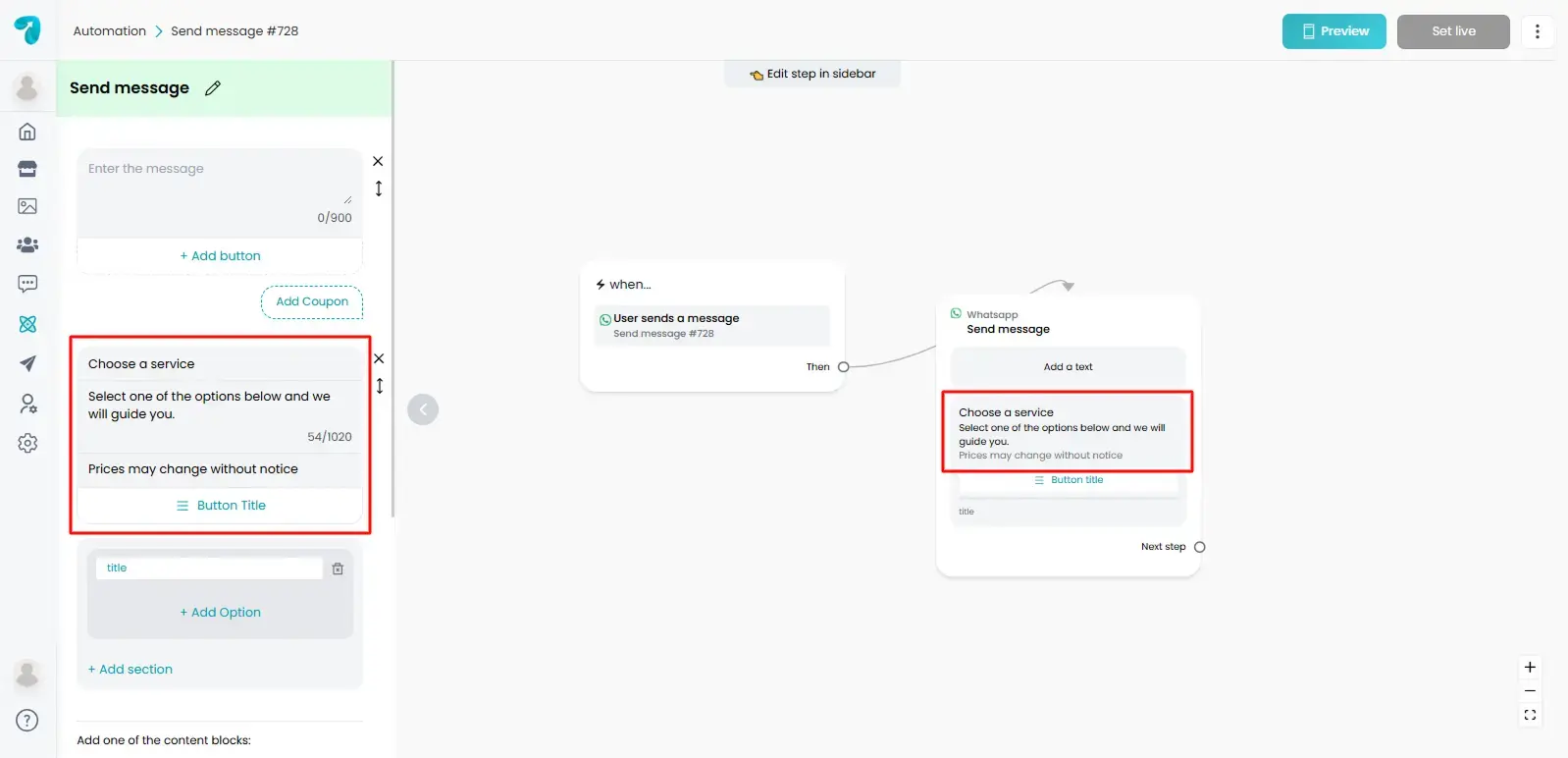
3. Add the Title, Description and Footnote
- List Title – Example: Choose a service
- Message Description – Example: Select one of the options below and we will guide you.
- Footnote – Example: Prices may change without notice
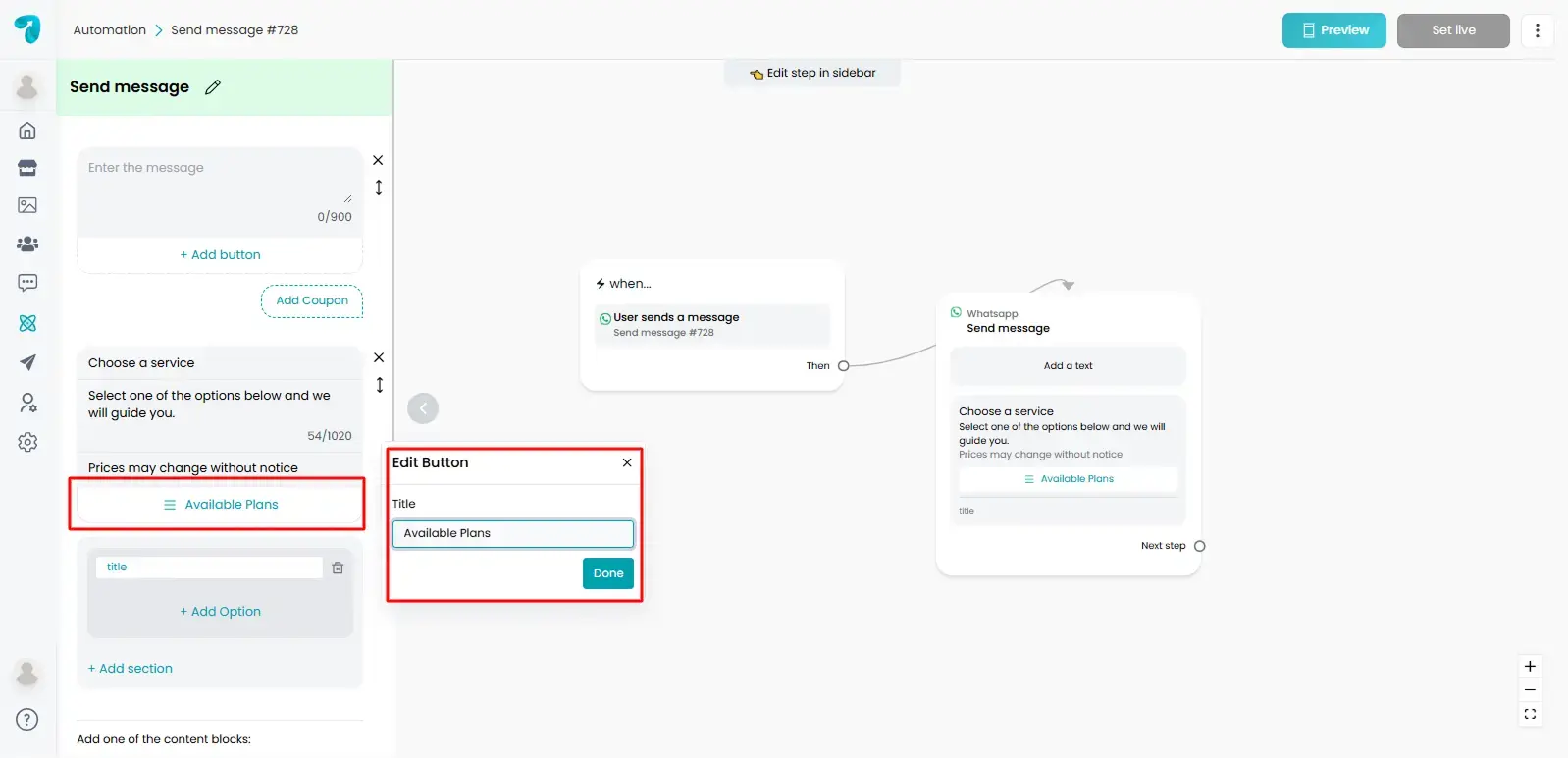
4. Set the Menu Title
Add a menu title. Example: Available Plans
5. Add Your Options
- Click Add Option for each choice.
- Each option has a label (what the customer sees) and an internal ID or payload (used to link the flow).
- You can add up to 10 options.
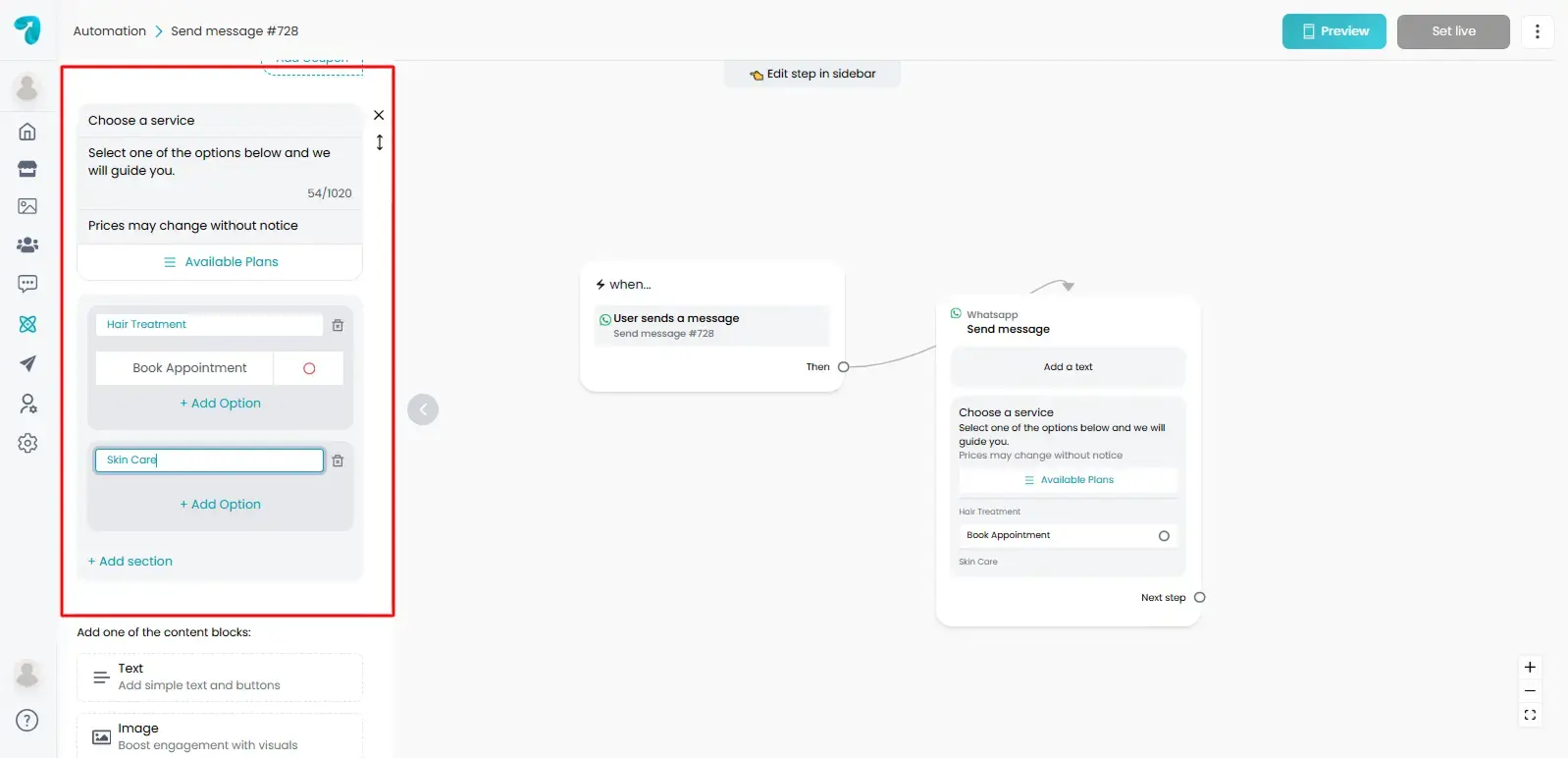
Example Options
- Free Plan
- Pro Plan
- Business Plan
6. Link Options to Flow Actions
For each option, choose what happens next. For example:
- Free Plan → Send free plan details
- Pro Plan → Send pro plan pricing
- Business Plan → Schedule a demo
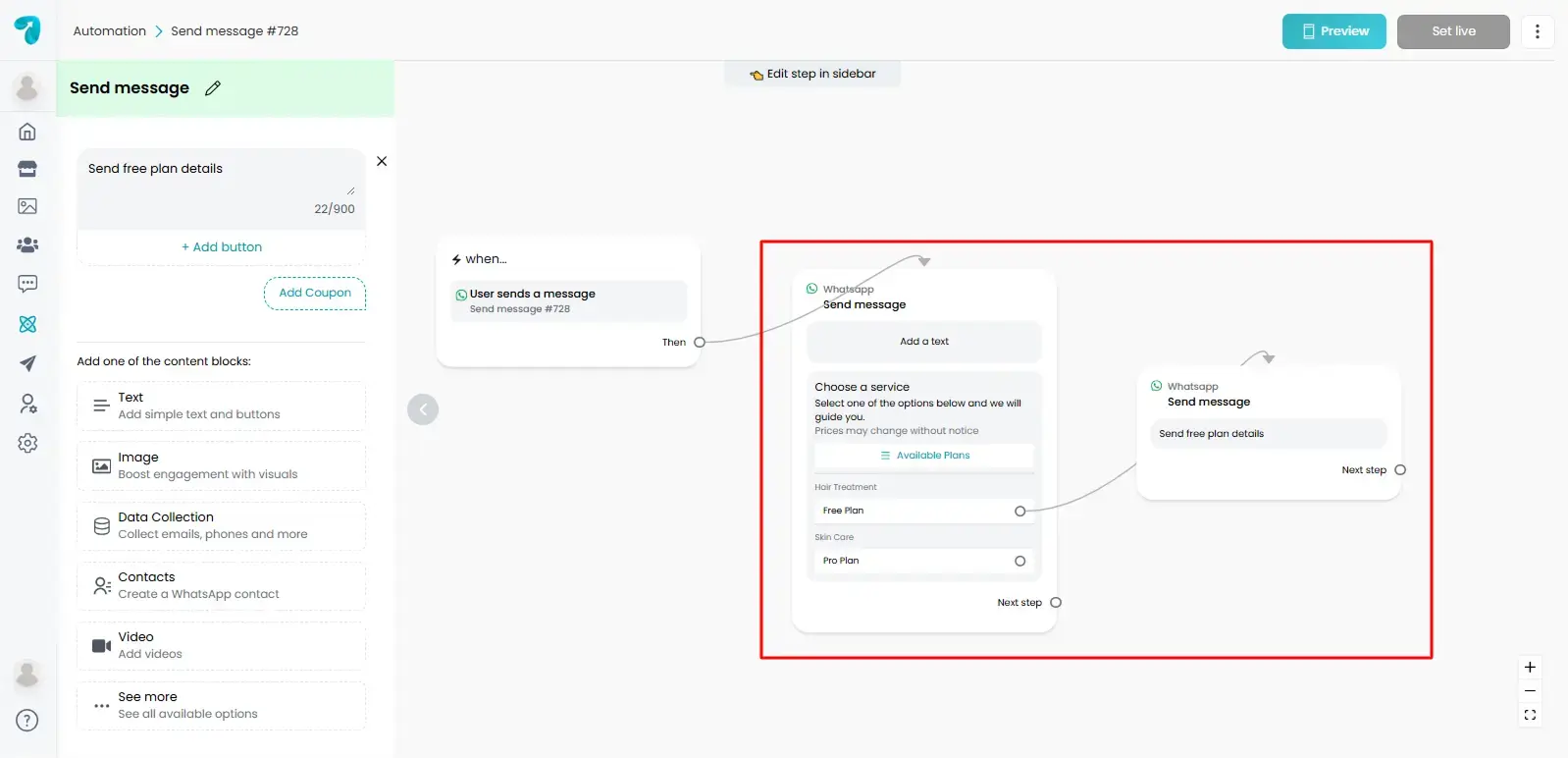
7. Save and Test
Save your flow. Preview it by sending the list message to a test number to make sure the options work.
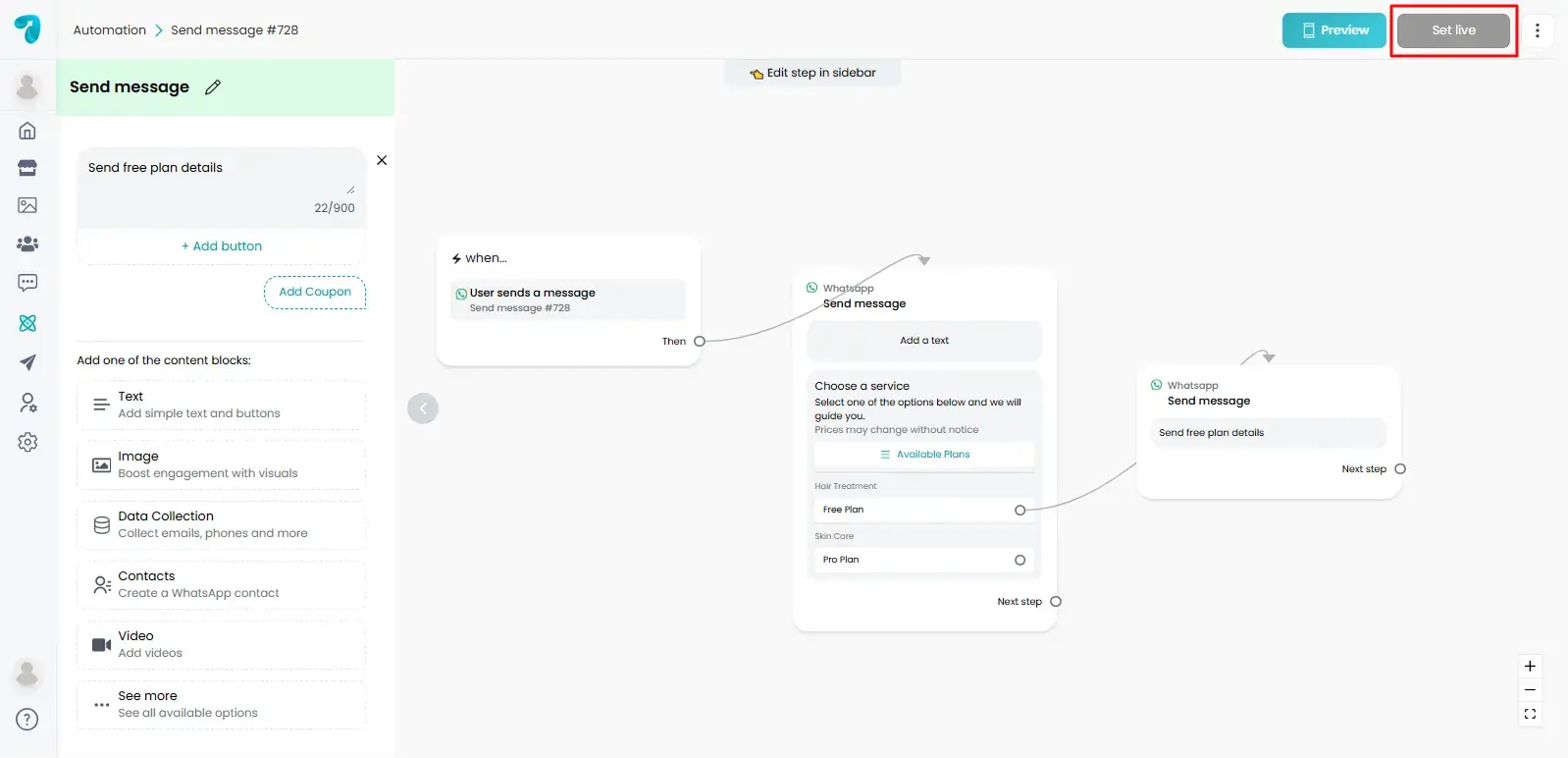
Tips for List Messages
- Keep titles and option names short.
- Limit the number of options to avoid confusion.
- Give each option a clear action so the flow continues correctly.
- Test on both Android and iPhone to make sure it looks right.
Example List Message
- List Title: Choose a plan
- Message Description: Pick one plan and we’ll send the sign-up link.
- Footnote: All plans include 24/7 chat support.
- Menu Title: Plans
- Options (3):
- Label: Free — Basic features | Payload: plan_free → Next block: send_free_signup
- Label: Pro — Advanced tools | Payload: plan_pro → Next block: send_pro_pricing
- Label: Business — Team plan | Payload: plan_business → Next block: book_demo
- Label: Free — Basic features | Payload: plan_free → Next block: send_free_signup